Everyday output in one line. The monster when you need it.
ConsoleMonster makes the output of the commands you already run readable, and draws tables, trees, charts, live runs, dashboards, menus and forms when you need more. One engine for .NET and PowerShell 5.1 and 7, with no package dependencies and plain lines when the output is a log.
Install-Module ConsoleMonster -Scope CurrentUserdotnet add package ConsoleMonster- No dependencies
- PowerShell 5.1 and 7
- netstandard2.0, net472, net8.0, net10.0
- MIT licence
- v2.4.2
Better output for the commands you already run: one line turns it on for the session.
Everyday PowerShell outputPS> Enable-ConsoleFormatting PS> PS> # The same objects now PS> $services ╭───────────┬─────────┬───────────────────┬───────────╮ │ Status │ Name │ DisplayName │ StartType │ ├───────────┼─────────┼───────────────────┼───────────┤ │ ● Running │ WebApi │ Web API │ │ │ ● Running │ Worker │ Background worker │ │ │ – Stopped │ Archive │ Archive │ │ ╰───────────┴─────────┴───────────────────┴───────────╯ PS> [version] '2.0.0' 2.0.0 Major 2 Minor 0 Build 0 Revision -1 PS> [ordered] @{ Domain = 'evotec.xyz'; Records = 14; DNSSEC = $false } Domain evotec.xyz Records 14 DNSSEC – no PS>
Shows PowerShell's own output, then the same service inventory, version and dictionary after Enable-ConsoleFormatting. It plays once when it comes into view and stops on the after view; Play runs it again. Before and After under the player jump to each half. Recorded at an interactive PowerShell 7 prompt from the script in the tab beside it.
Packages
Two lines
# 1. Install once
Install-Module ConsoleMonster -Scope CurrentUser

# 2. Turn it on for this session
Enable-ConsoleFormatting

# 3. Keep it on: paste the lines this prints into your profile (notepad $PROFILE), then open a new session
Enable-ConsoleFormatting -ProfileSnippet# Invented services: the same inventory before and after formatting is enabled.
$services = @(
[pscustomobject] @{ PSTypeName = 'System.ServiceProcess.ServiceController'
ServiceName = 'WebApi'; Status = 'Running'; ServicesDependedOn = @()
DisplayName = 'Web API' }
[pscustomobject] @{ PSTypeName = 'System.ServiceProcess.ServiceController'
ServiceName = 'Worker'; Status = 'Running'; ServicesDependedOn = @()
DisplayName = 'Background worker' }
[pscustomobject] @{ PSTypeName = 'System.ServiceProcess.ServiceController'
ServiceName = 'Archive'; Status = 'Stopped'; ServicesDependedOn = @()
DisplayName = 'Archive' }
)
# PowerShell's own output
$services
[version] '2.0.0'
[ordered] @{ Domain = 'evotec.xyz'; Records = 14; DNSSEC = $false }
Clear-Host
Enable-ConsoleFormatting
# The same objects now
$services
[version] '2.0.0'
[ordered] @{ Domain = 'evotec.xyz'; Records = 14; DNSSEC = $false }Full program
Import-Module ConsoleMonster
# Invented services: the same inventory before and after formatting is enabled.
$services = @(
    [pscustomobject] @{ PSTypeName = 'System.ServiceProcess.ServiceController'
        ServiceName = 'WebApi'; Status = 'Running'; ServicesDependedOn = @()
        DisplayName = 'Web API' }
    [pscustomobject] @{ PSTypeName = 'System.ServiceProcess.ServiceController'
        ServiceName = 'Worker'; Status = 'Running'; ServicesDependedOn = @()
        DisplayName = 'Background worker' }
    [pscustomobject] @{ PSTypeName = 'System.ServiceProcess.ServiceController'
        ServiceName = 'Archive'; Status = 'Stopped'; ServicesDependedOn = @()
        DisplayName = 'Archive' }
)

# PowerShell's own output
$services
[version] '2.0.0'
[ordered] @{ Domain = 'evotec.xyz'; Records = 14; DNSSEC = $false }

Clear-Host
Enable-ConsoleFormatting

# The same objects now
$services
[version] '2.0.0'
[ordered] @{ Domain = 'evotec.xyz'; Records = 14; DNSSEC = $false }
Full console applications: menus, forms, live dashboards and results, from one library.
Menus, forms and appsAny thread can update the screen: 32 workers, 80,210 updates a second, none dropped. Threads and concurrency
 Fleet health check › New check › Results                                                                           Tue 20 Oct 2026 · 09:30
╭─────────────────────────╮ ╭─ Results ───────────────────────────────────────────────────────────────────────────────────────── 00:01:19 ─╮
│                         │ │                                                                                                              │
│  p  ★ Presets           │ │  ✗ Fleet check finished                                                                                      │
│› n  ► New check         │ │    121 checks on 11 servers in corp.contoso.com. 4 need action now; 7 warnings to review.                    │
│  h  ≡ History   4 runs  │ │                                                                                                              │
│                         │ │    110 passed     7 warnings     4 failed     11 servers                                                     │
│     Quit                │ │                                                                                                              │
│                         │ │    Server  Check            Expected   Actual                                                                │
│                         │ │    ──────  ───────────────  ─────────  ─────────                                                             │
│                         │ │    DC02    Time offset      under 1 s  4.7 s                                                                 │
│                         │ │    FS11    Missing updates  0          3 updates                                                             │
│                         │ │    SQL11   Free space       15% free   6% on D:                                                              │
│                         │ │    WEB21   Cert expiry      30+ days   9 days                                                                │
│                         │ │                                                                                                              │
│                         │ │  Next steps                                                                                                  │
│                         │ │    Open the report                                                                                           │
│                         │ │    Rerun the failed checks                                                                                   │
│                         │ │    Export findings to CSV                                                                                    │
│                         │ │    Back                                                                                                      │
│                         │ │                                                                                                              │
│                         │ │                                                                                                              │
│                         │ │                                                                                                              │
│                         │ │                                                                                                              │
│                         │ │                                                                                                              │
│                         │ │                                                                                                              │
│                         │ │                                                                                                              │
│                         │ │                                                                                                              │
│                         │ │                                                                                                              │
│                         │ │                                                                                                              │
│                         │ │                                                                                                              │
│                         │ │                                                                                                              │
│                         │ │                                                                                                              │
│                         │ │                                                                                                              │
│                         │ │                                                                                                              │
│                         │ │                                                                                                              │
│                         │ │                                                                                                              │
│                         │ │                                                                                                              │
╰─────────────────────────╯ ╰──────────────────────────────────────────────────────────────────────────────────────────────────────────────╯
 ◆ Queued 4 failed checks for a rerun
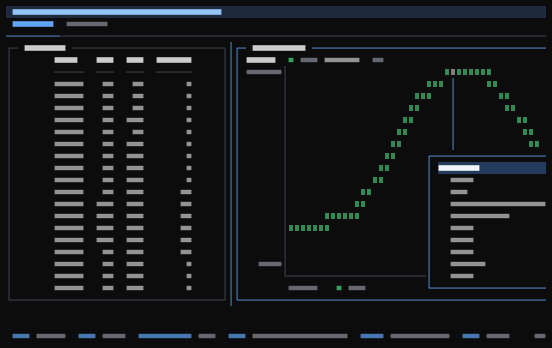
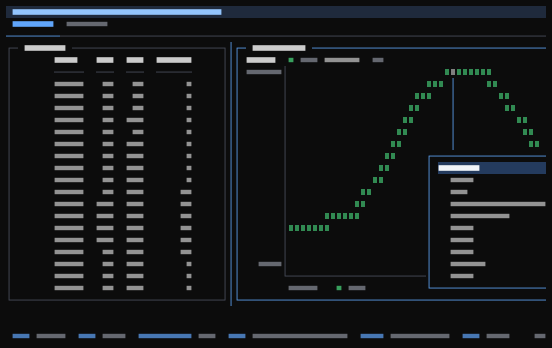
A whole console application, recorded from its program in the C# tab with dotnet run -- --demo, pressing its own keys: a preset in the Shell menu, a form whose servers load for the chosen domain, the review with the equivalent command, the live dashboard, and the results with next steps. Menu, Form, Dashboard and Results under the player jump to each part. It plays once when you choose Monster and stops on the results; Play runs it again.
Packages
The app's program
param(
    [ValidateSet('Shell', 'Classic', 'Inline')][string] $Layout = 'Shell',
    # Simulated seconds per real second during the run; 0 runs it without waiting.
    [double] $Speed = 7
)
# Fleet health check, the complete-application showcase as a script: built-in presets with previews, a form
# whose servers load for the chosen domain, grouped checks with a preview, the review with the equivalent
# command, and a run into a dashboard on a simulated clock that ends on a results summary with next actions.
# The outcomes are fixed, so every run tells the same story. All data is invented.
Import-Module ConsoleMonster

# The data: servers by domain, the checks, the results that are not a plain pass, presets and earlier runs.
# … 139 more lines in the full program
$loadDelay = if ($Speed -gt 0) { 1100 } else { 0 }

# The form: a domain whose servers load, grouped checks with a preview, options, and the review with
# the equivalent command.
$domainChoices = foreach ($domain in $domains.Keys) {
    [pscustomobject] @{
        Name  = $domain
        Sites = $domains[$domain]
        Count = @($servers | Where-Object Domain -EQ $domain).Count
    }
}
$domainSettings = @{
    Key         = 'Domain'
    Label        = 'Domain'
    Kind         = 'Select'
    Page         = 'Scope'
    Required     = $true
    ParameterName    = 'Domain'
    Choices      = $domainChoices
    Display      = 'Name'
    CommandValue = 'Name'
    Describe     = { "$($_.Count) servers · $($_.Sites)" }
    Badge        = { "$($_.Count) servers" }
    Help         = 'Choosing a domain loads its servers from the inventory.'
}
$domainField = New-ConsoleField @domainSettings
# The servers load in their own runspace when the domain changes: grouped by site, offline ones disabled,
# online ones chosen.
$serversSettings = @{
    Key         = 'Servers'
    Label        = 'Servers'
    Kind         = 'Select'
    Multiple     = $true
    Page         = 'Scope'
    DependsOn    = 'Domain'
    Minimum      = 1
    ParameterName    = 'ComputerName'
    Help         = 'Grouped by site; offline servers cannot be picked. Space toggles, Ctrl+A selects all.'
    ArgumentList = $servers, $loadDelay
    LoadChoices  = {
        param($Values, $Inventory, $Delay)
        Start-Sleep -Milliseconds $Delay
        foreach ($server in $Inventory) {
            if ($server.Domain -eq $Values.Domain) {
                [pscustomobject] @{
                    Name    = $server.Name
                    Site    = $server.Site
                    Role    = $server.Role
                    Detail  = "$($server.Role) · $($server.Address)"
                    Offline = $server.Offline
                    Online  = -not $server.Offline
                }
            }
        }
    }
    Display      = 'Name'
    CommandValue = 'Name'
    GroupBy      = 'Site'
    Badge        = 'Role'
    Describe     = 'Detail'
    DisabledReason     = 'Offline'
    Default     = @{ Property = 'Online' }
}
$serversField = New-ConsoleField @serversSettings
$checksSettings = @{
    Key         = 'Checks'
    Label        = 'Checks'
    Kind         = 'Select'
    Multiple     = $true
    Page         = 'Checks'
    Choices      = $checks
    Display      = 'Name'
    CommandValue = 'Id'
    GroupBy      = 'Category'
    Describe     = 'About'
    Minimum      = 1
    ParameterName    = 'Check'
    Badge        = { '~{0} s' -f $_.Seconds.ToString('0.#', [cultureinfo]::InvariantCulture) }
    Default     = { $_.Id -in 'SecureChannel', 'TimeOffset', 'ForwardRecord' }
    Help         = 'Grouped by category; the preview shows what a healthy server reports.'
    Preview      = {
        New-ConsoleText $_.About
        New-ConsoleKeyValue -Markup -InputObject ([ordered] @{
                Category  = $_.Category
                Healthy   = "[pass]$($_.Expected)[/]"
                Typical   = "about $($_.Seconds) s per server"
                Parameter = "[accent]-Check $_[/]"
            })
    }
}
$checksField = New-ConsoleField @checksSettings
$parallelSettings = @{
    Key      = 'Parallel'
    Label     = 'Servers at a time'
    Kind      = 'Number'
    Page      = 'Options'
    Integer   = $true
    Minimum   = 1
    Maximum   = 16
    Default   = 4
    ParameterName = 'ThrottleLimit'
}
$parallelField = New-ConsoleField @parallelSettings
$formats = @(
    [pscustomobject] @{ Value = 'Html'; Title = 'HTML' }
    [pscustomobject] @{ Value = 'Csv'; Title = 'CSV' }
    [pscustomobject] @{ Value = 'Json'; Title = 'JSON' }
)
$formatSettings = @{
    Key         = 'Format'
    Label        = 'Report format'
    Kind         = 'Select'
    Page         = 'Options'
    Choices      = $formats
    Display      = 'Title'
    CommandValue = 'Value'
    Default      = 'Html'
    ParameterName    = 'Format'
}
$formatField = New-ConsoleField @formatSettings
$reportField = New-ConsoleField Report 'Report folder' -Kind Path -PathKind Folder -Page Options `
    -Default 'Reports/Fleet' -ParameterName ReportPath
$notifyField = New-ConsoleField Notify 'Email the report' -Kind Toggle -Page Options -ParameterName Notify
$emailSettings = @{
    Key        = 'Email'
    Label       = 'Recipient'
    Page        = 'Options'
    Default     = '[email protected]'
    ParameterName   = 'To'
    VisibleWhen = { $Values.Notify }
    Validator    = { if ($_ -notmatch '@') { 'Enter an email address' } }
}
$emailField = New-ConsoleField @emailSettings
$formSettings = @{
    Title       = 'New check'
    Command     = 'Invoke-FleetCheck'
    SubmitText  = 'Run checks'
    Description = 'Checks the health of every chosen server.'
    Content     = {
        $domainField, $serversField, $checksField, $parallelField
        $formatField, $reportField, $notifyField, $emailField
    }
}
$form = New-ConsoleForm @formSettings

$menu = New-ConsoleMenu 'Fleet health check' -Subtitle 'Tue 20 Oct 2026 · 09:30' -Content {
    # Built-in presets fill in the form (servers are chosen once the domain's servers load);
    # people can save their own.
    foreach ($preset in $presets) {
        $names = @(
            $servers |
                Where-Object { -not $_.Offline -and (-not $preset.Role -or $_.Role -eq $preset.Role) } |
                ForEach-Object Name
        )
        $preview = New-ConsoleRows -Gap 1 -Content {
            $categoryNames = $checks |
                Where-Object { $preset.Checks -contains $_.Id } |
                ForEach-Object Category |
                Select-Object -Unique
            $checkNames = foreach ($id in @($preset.Checks)) { ($checks | Where-Object Id -EQ $id).Name }
            New-ConsoleKeyValue -Markup -InputObject ([ordered] @{
                    Servers  = $preset.Scope
                    Checks   = "$(@($preset.Checks).Count) [muted]· $(@($categoryNames) -join ', ')[/]"
                    Workers  = "$($preset.Parallel) servers at a time"
                    Report   = $preset.Format.ToUpper() + $(if ($preset.Notify) { ' [muted]· emailed[/]' })
                    Schedule = $preset.Schedule
                })
            "[muted]$($checkNames -join ' · ')[/]"
        }
        $presetValues = @{
            Servers  = $names
            Checks   = $preset.Checks
            Parallel = $preset.Parallel
            Format   = $preset.Format
            Notify   = $preset.Notify
        }
        [pscustomobject]@{ Name = $preset.Name; Preview = $preview; Form = $form; Values = $presetValues }
    }
    New-ConsoleMenuItem 'Presets' -Hotkey p -IconName Favorite -Presets `
        -Description 'Scopes for New check. Applying one fills in the form; the domain stays your choice.'
    $newCheck = 'Choose a domain, its servers and the checks, review the equivalent command, and run.'
    New-ConsoleMenuItem 'New check' -Hotkey n -IconName Run -Description $newCheck -Form $form -OnSubmit {
        $chosen = @($Values.Checks | ForEach-Object { [string] $_ })
        $names = @($Values.Servers | ForEach-Object { [string] $_ })
        $plan = [pscustomobject] @{
            Domain   = [string] $Values.Domain
            Servers  = @($servers | Where-Object { $names -contains $_.Name })
            Checks   = @($checks | Where-Object { $chosen -contains $_.Id })
            Parallel = [int] $Values.Parallel
            Format   = [string] $Values.Format
            Notify   = [bool] $Values.Notify
            Email    = $Values.Email
        }
        $plan | Add-Member -NotePropertyMembers @{
            Total      = $plan.Servers.Count * $plan.Checks.Count
            ReportFile = "fleet-20261020-0930.$($plan.Format.ToLower())"
            Categories = @($categories | Where-Object { $plan.Checks.Category -contains $_ })
        }
        $reportFolder = [string] $Values.Report
        # An invented report name, kept portable in the showcase; this example writes no report file.
        $reportDisplayPath = $reportFolder.TrimEnd('/', '\').Replace('\', '/') + '/' + $plan.ReportFile
        $plan | Add-Member -NotePropertyName ReportPath -NotePropertyValue $reportDisplayPath
        $laneTotal = @{}
        foreach ($category in $plan.Categories) {
            $inCategory = @($plan.Checks | Where-Object Category -EQ $category)
            $laneTotal[$category] = $plan.Servers.Count * $inCategory.Count
        }
        $siteCount = @($plan.Servers.Site | Select-Object -Unique).Count
        $reportLabel = $plan.Format.ToUpper() + $(if ($plan.Notify) { ' [muted]· emailed[/]' })

        # The dashboard: one row per server and one column per check in the map, the categories with the plan,
        # what runs now.
        $dashboard = New-ConsoleDashboard -Title '[bold]Fleet health check[/]' -Subtitle $plan.Domain -Content {
            New-ConsoleSummaryBar -Total $plan.Total -BarWidth 24 -Counter ([ordered] @{
                    passed   = 0
                    warnings = 0
                    failed   = 0
                })
            New-ConsoleStatusList -Layout Strip -WidgetId phases -Content { 'Discover', 'Connect', 'Check', 'Report' }
            New-ConsoleColumns -Content {
                New-ConsolePanel -Title 'Check map' -Weight 1.0 -Content {
                    $map = @{
                        WidgetId    = 'cells'
                        Count       = $plan.Total
                        Columns     = $plan.Checks.Count
                        RowLabels   = $plan.Servers.Name
                        LegendLines = 2
                    }
                    New-ConsoleCellMap @map
                }
                New-ConsolePanel -Title 'Categories' -Weight 1.15 -Content {
                    New-ConsoleRows -Content {
                        New-ConsoleLanes -WidgetId categories -Content {
                            foreach ($category in $plan.Categories) {
                                [pscustomobject]@{ Key = $category; Total = $laneTotal[$category] }
                            }
                        }
                        New-ConsoleRule
                        New-ConsoleKeyValue -Markup -InputObject ([ordered] @{
                                Domain  = "[accent]$($plan.Domain)[/]"
                                Servers = "$($plan.Servers.Count) [muted]· $siteCount sites[/]"
                                Checks  = "$($plan.Checks.Count) [muted]· $($plan.Total) in all[/]"
                                Report  = $reportLabel
                            })
                    }
                }
                New-ConsolePanel -Title 'Running' -Weight 0.95 -HeaderRight "$($plan.Parallel) workers" -Content {
                    New-ConsoleActivityList -WidgetId running -MaxVisible 8
                }
            }
            New-ConsoleColumns -FixedWidth 0, 0, 17 -Content {
                New-ConsolePanel -Title 'Failures' -Weight 1.52 -Content {
                    $actualColumn = @{ Name = 'Actual'; Flexible = $true; Markup = $true }
                    $columns = 'Server', 'Check', 'Expected', $actualColumn
                    New-ConsoleTable -WidgetId failures -MaxRows 5 -Border Minimal -Live -Property $columns
                }
                New-ConsolePanel -Title 'Slowest checks' -Weight 1 -Content {
                    $tookColumn = @{ Name = 'Took'; Alignment = 'Right' }
                    New-ConsoleTable -WidgetId slowest -Border Minimal -Live -Property 'Check', 'Server', $tookColumn
                }
                New-ConsolePanel -Title 'Durations' -Content {
                    New-ConsoleChart -WidgetId durations -Height 5 -Type Histogram -Edges 0, 2, 4, 8, 16
                }
            }
            New-ConsolePanel -Title 'Log' -Fill -Content { New-ConsoleLogRegion -Height 6 }
        }
        # The run moves a simulated clock: the header, the summary bar, the log and the results show its time.
        $clock = New-Object ConsoleMonster.Live.SimulatedClock -ArgumentList ($Speed)
        $checkRun = {
            $random = New-Object System.Random 20261020
            # … 241 more lines in the full program
            $next['Export findings to CSV'] = { $MenuContext.Toast('Saved findings-20261020-0930.csv') }
            $result = @{
                Title        = 'Fleet check finished'
                Status       = $overall
                Summary      = $summary
                Figure       = [ordered] @{
                    passed   = $tally.Passed
                    warnings = $tally.Warned
                    failed   = $tally.Failed
                    servers  = $plan.Servers.Count
                }
                FigureStatus = @{
                    passed   = 'Pass'
                    warnings = $(if ($tally.Warned) { 'Warn' } else { 'Pass' })
                    failed   = $(if ($tally.Failed) { 'Fail' } else { 'Pass' })
                }
                Details      = $details
                Next         = $next
            }
            $result
        }
        $null = $MenuContext.Run($dashboard, $checkRun, $clock)
    }
    $historyState = { "$(@($script:history).Count) runs" }
    New-ConsoleMenuItem 'History' -Hotkey h -IconName List -Description 'Earlier runs, newest first.' `
        -Detail $historyState -Page {
        $rows = for ($i = @($script:history).Count - 1; $i -ge 0; $i--) {
            $run = @($script:history)[$i]
            $tone = if ($run.Failed) { 'fail' } elseif ($run.Warnings) { 'warn' } else { 'pass' }
            [pscustomobject] @{
                When    = $run.When
                Domain  = $run.Domain
                Servers = $run.Servers
                Checks  = $run.Servers * $run.Checks
                Result  = "[$tone]$($run.Passed) passed · $($run.Warnings) warn · $($run.Failed) failed[/]"
                Took    = '{0:hh\:mm\:ss}' -f $run.Elapsed
            }
        }
        $columns = @(
            'When'
            'Domain'
            @{ Name = 'Servers'; Alignment = 'Right' }
            @{ Name = 'Checks'; Alignment = 'Right' }
            @{ Name = 'Result'; Markup = $true }
            @{ Name = 'Took'; Alignment = 'Right' }
        )
        $rows | New-ConsoleTable -Property $columns -Border Minimal -NoSort
    }
    New-ConsoleMenuItem -Separator
    New-ConsoleMenuItem 'Quit' -Exit
}

Show-ConsoleMenu $menu -Layout $Layout -AppName 'ConsoleMonster fleet health check'
Full program
param(
[ValidateSet('Shell', 'Classic', 'Inline')][string] $Layout = 'Shell',
# Simulated seconds per real second during the run; 0 runs it without waiting.
[double] $Speed = 7
)
# Fleet health check, the complete-application showcase as a script: built-in presets with previews, a form
# whose servers load for the chosen domain, grouped checks with a preview, the review with the equivalent
# command, and a run into a dashboard on a simulated clock that ends on a results summary with next actions.
# The outcomes are fixed, so every run tells the same story. All data is invented.
Import-Module ConsoleMonster
# The data: servers by domain, the checks, the results that are not a plain pass, presets and earlier runs.
# Database servers and the remote site have longer synthetic timings.
$servers = @(
[pscustomobject] @{ Name = 'DC01'; Domain = 'corp.contoso.com'; Site = 'Warsaw'; Role = 'Domain controller'; Address = '10.20.1.11'; Offline = $null; Slowness = 1.0 }
[pscustomobject] @{ Name = 'DC02'; Domain = 'corp.contoso.com'; Site = 'Warsaw'; Role = 'Domain controller'; Address = '10.20.1.12'; Offline = $null; Slowness = 1.0 }
[pscustomobject] @{ Name = 'FS01'; Domain = 'corp.contoso.com'; Site = 'Warsaw'; Role = 'File'; Address = '10.20.1.21'; Offline = $null; Slowness = 1.0 }
[pscustomobject] @{ Name = 'SQL01'; Domain = 'corp.contoso.com'; Site = 'Warsaw'; Role = 'Database'; Address = '10.20.1.31'; Offline = $null; Slowness = 1.5 }
[pscustomobject] @{ Name = 'WEB01'; Domain = 'corp.contoso.com'; Site = 'Warsaw'; Role = 'Web'; Address = '10.20.1.41'; Offline = $null; Slowness = 1.0 }
[pscustomobject] @{ Name = 'DC11'; Domain = 'corp.contoso.com'; Site = 'Dublin'; Role = 'Domain controller'; Address = '10.30.1.11'; Offline = $null; Slowness = 1.0 }
[pscustomobject] @{ Name = 'FS11'; Domain = 'corp.contoso.com'; Site = 'Dublin'; Role = 'File'; Address = '10.30.1.21'; Offline = $null; Slowness = 1.0 }
[pscustomobject] @{ Name = 'SQL11'; Domain = 'corp.contoso.com'; Site = 'Dublin'; Role = 'Database'; Address = '10.30.1.31'; Offline = $null; Slowness = 1.5 }
[pscustomobject] @{ Name = 'WEB11'; Domain = 'corp.contoso.com'; Site = 'Dublin'; Role = 'Web'; Address = '10.30.1.41'; Offline = $null; Slowness = 1.0 }
[pscustomobject] @{ Name = 'DC21'; Domain = 'corp.contoso.com'; Site = 'Berlin'; Role = 'Domain controller'; Address = '10.40.1.11'; Offline = $null; Slowness = 1.3 }
[pscustomobject] @{ Name = 'WEB21'; Domain = 'corp.contoso.com'; Site = 'Berlin'; Role = 'Web'; Address = '10.40.1.41'; Offline = $null; Slowness = 1.3 }
[pscustomobject] @{ Name = 'FS22'; Domain = 'corp.contoso.com'; Site = 'Berlin'; Role = 'File'; Address = '10.40.1.22'; Offline = 'offline since 07:12'; Slowness = 1.3 }
[pscustomobject] @{ Name = 'OSL-DC1'; Domain = 'fabrikam.net'; Site = 'Oslo'; Role = 'Domain controller'; Address = '172.16.1.10'; Offline = $null; Slowness = 1.0 }
[pscustomobject] @{ Name = 'OSL-FS1'; Domain = 'fabrikam.net'; Site = 'Oslo'; Role = 'File'; Address = '172.16.1.20'; Offline = $null; Slowness = 1.0 }
[pscustomobject] @{ Name = 'OSL-WEB1'; Domain = 'fabrikam.net'; Site = 'Oslo'; Role = 'Web'; Address = '172.16.1.40'; Offline = $null; Slowness = 1.0 }
[pscustomobject] @{ Name = 'MAD-DC1'; Domain = 'fabrikam.net'; Site = 'Madrid'; Role = 'Domain controller'; Address = '172.17.1.10'; Offline = $null; Slowness = 1.0 }
[pscustomobject] @{ Name = 'MAD-APP1'; Domain = 'fabrikam.net'; Site = 'Madrid'; Role = 'Web'; Address = '172.17.1.40'; Offline = $null; Slowness = 1.0 }
[pscustomobject] @{ Name = 'MAD-SQL1'; Domain = 'fabrikam.net'; Site = 'Madrid'; Role = 'Database'; Address = '172.17.1.30'; Offline = $null; Slowness = 1.5 }
[pscustomobject] @{ Name = 'LAB-DC1'; Domain = 'lab.adatum.com'; Site = 'Lab'; Role = 'Domain controller'; Address = '192.168.50.10'; Offline = $null; Slowness = 1.0 }
[pscustomobject] @{ Name = 'LAB-WEB1'; Domain = 'lab.adatum.com'; Site = 'Lab'; Role = 'Web'; Address = '192.168.50.40'; Offline = $null; Slowness = 1.0 }
[pscustomobject] @{ Name = 'LAB-SQL1'; Domain = 'lab.adatum.com'; Site = 'Lab'; Role = 'Database'; Address = '192.168.50.30'; Offline = $null; Slowness = 1.5 }
[pscustomobject] @{ Name = 'LAB-TEST1'; Domain = 'lab.adatum.com'; Site = 'Lab'; Role = 'File'; Address = '192.168.50.90'; Offline = 'in maintenance until Friday'; Slowness = 1.0 }
)
$domains = [ordered] @{
'corp.contoso.com' = 'Warsaw, Dublin, Berlin'
'fabrikam.net' = 'Oslo, Madrid'
'lab.adatum.com' = 'Lab'
}
$checks = @(
[pscustomobject] @{ Id = 'SecureChannel'; Name = 'Secure channel'; Category = 'Identity'; Expected = 'trusted'; Seconds = 1.2; About = "Tests the computer account's trust with the domain." }
[pscustomobject] @{ Id = 'TimeOffset'; Name = 'Time offset'; Category = 'Identity'; Expected = 'under 1 s'; Seconds = 0.8; About = "Compares the clock with the domain's time source." }
[pscustomobject] @{ Id = 'LocalAdmins'; Name = 'Local admins'; Category = 'Identity'; Expected = 'approved list'; Seconds = 2.5; About = 'Compares local Administrators with the approved list.' }
[pscustomobject] @{ Id = 'ForwardRecord'; Name = 'Forward record'; Category = 'DNS'; Expected = 'matches IP'; Seconds = 0.6; About = "Resolves the host name and compares the A record with the server's address." }
[pscustomobject] @{ Id = 'ReverseRecord'; Name = 'Reverse record'; Category = 'DNS'; Expected = 'PTR present'; Seconds = 0.7; About = "Looks up the PTR record of the server's address." }
[pscustomobject] @{ Id = 'Resolvers'; Name = 'DNS resolvers'; Category = 'DNS'; Expected = '2 of 2'; Seconds = 1.5; About = "Asks each configured resolver for the domain's SOA record." }
[pscustomobject] @{ Id = 'CertExpiry'; Name = 'Cert expiry'; Category = 'Certificates'; Expected = '30+ days'; Seconds = 1.8; About = 'Finds machine certificates that expire within 30 days.' }
[pscustomobject] @{ Id = 'CertChain'; Name = 'Cert chain'; Category = 'Certificates'; Expected = 'trusted root'; Seconds = 3.5; About = "Builds each certificate's chain to a trusted root." }
[pscustomobject] @{ Id = 'MissingUpdates'; Name = 'Missing updates'; Category = 'Updates'; Expected = '0'; Seconds = 6.5; About = 'Lists security updates released more than 14 days ago and not installed.' }
[pscustomobject] @{ Id = 'PendingRestart'; Name = 'Pending restart'; Category = 'Updates'; Expected = 'no'; Seconds = 1.0; About = 'Reports a restart waiting after updates or role changes.' }
[pscustomobject] @{ Id = 'FreeSpace'; Name = 'Free space'; Category = 'Storage'; Expected = '15% free'; Seconds = 1.3; About = 'Measures free space on every fixed volume.' }
[pscustomobject] @{ Id = 'VolumeHealth'; Name = 'Volume health'; Category = 'Storage'; Expected = 'healthy'; Seconds = 4.0; About = 'Reads the health and operational status of every volume.' }
[pscustomobject] @{ Id = 'AutoServices'; Name = 'Auto services'; Category = 'Services'; Expected = 'all running'; Seconds = 2.2; About = 'Checks that automatic services are running.' }
[pscustomobject] @{ Id = 'EventErrors'; Name = 'Event errors'; Category = 'Services'; Expected = 'under 20'; Seconds = 5.0; About = 'Counts System and Application errors in the last 24 hours.' }
)
$categories = 'Identity', 'DNS', 'Certificates', 'Updates', 'Storage', 'Services'
# Results that are not a plain pass; everything else passes.
$outcomes = @{
'DC02/TimeOffset' = 'Fail', '4.7 s'
'FS11/MissingUpdates' = 'Fail', '3 updates'
'SQL11/FreeSpace' = 'Fail', '6% on D:'
'WEB21/CertExpiry' = 'Fail', '9 days'
'DC11/TimeOffset' = 'Warn', '0.9 s'
'DC21/Resolvers' = 'Warn', '1 of 2'
'WEB01/CertChain' = 'Warn', 'intermediate ends in 40 days'
'SQL01/PendingRestart' = 'Warn', 'since Sunday'
'FS01/EventErrors' = 'Warn', '27'
'SQL11/EventErrors' = 'Warn', '34'
'WEB11/AutoServices' = 'Warn', '1 restarted'
}
$nightly = @(
'SecureChannel', 'TimeOffset', 'ForwardRecord', 'Resolvers', 'CertExpiry'
'MissingUpdates', 'PendingRestart', 'FreeSpace', 'AutoServices', 'EventErrors'
)
$presets = @(
[pscustomobject] @{
Name = 'Morning · identity & DNS'
Scope = 'domain controllers'
Role = 'Domain controller'
Schedule = 'weekdays 07:00'
Parallel = 4
Format = 'Html'
Notify = $false
Checks = 'SecureChannel', 'TimeOffset', 'LocalAdmins', 'ForwardRecord', 'ReverseRecord', 'Resolvers'
}
[pscustomobject] @{
Name = 'Nightly · all sites'
Scope = 'every online server'
Role = $null
Schedule = 'every day 02:00'
Parallel = 8
Format = 'Html'
Notify = $true
Checks = $nightly
}
[pscustomobject] @{
Name = 'Patch Tuesday · updates'
Scope = 'every online server'
Role = $null
Schedule = 'second Tuesday 22:00'
Parallel = 12
Format = 'Csv'
Notify = $true
Checks = 'MissingUpdates', 'PendingRestart', 'AutoServices', 'EventErrors'
}
[pscustomobject] @{
Name = 'Certificates · web tier'
Scope = 'web servers'
Role = 'Web'
Schedule = 'Mondays 06:00'
Parallel = 4
Format = 'Html'
Notify = $false
Checks = 'CertExpiry', 'CertChain', 'ForwardRecord'
}
)
$script:history = @(
[pscustomobject] @{
When = 'Sun 18 Oct 02:00'
Domain = 'corp.contoso.com'
Servers = 11
Checks = 10
Passed = 104
Warnings = 5
Failed = 1
Elapsed = [timespan]::FromSeconds(83)
}
[pscustomobject] @{
When = 'Mon 19 Oct 02:00'
Domain = 'corp.contoso.com'
Servers = 11
Checks = 10
Passed = 103
Warnings = 6
Failed = 1
Elapsed = [timespan]::FromSeconds(86)
}
[pscustomobject] @{
When = 'Mon 19 Oct 07:00'
Domain = 'fabrikam.net'
Servers = 2
Checks = 6
Passed = 12
Warnings = 0
Failed = 0
Elapsed = [timespan]::FromSeconds(14)
}
)
$loadDelay = if ($Speed -gt 0) { 1100 } else { 0 }
# The form: a domain whose servers load, grouped checks with a preview, options, and the review with
# the equivalent command.
$domainChoices = foreach ($domain in $domains.Keys) {
[pscustomobject] @{
Name = $domain
Sites = $domains[$domain]
Count = @($servers | Where-Object Domain -EQ $domain).Count
}
}
$domainSettings = @{
Key = 'Domain'
Label = 'Domain'
Kind = 'Select'
Page = 'Scope'
Required = $true
ParameterName = 'Domain'
Choices = $domainChoices
Display = 'Name'
CommandValue = 'Name'
Describe = { "$($_.Count) servers · $($_.Sites)" }
Badge = { "$($_.Count) servers" }
Help = 'Choosing a domain loads its servers from the inventory.'
}
$domainField = New-ConsoleField @domainSettings
# The servers load in their own runspace when the domain changes: grouped by site, offline ones disabled,
# online ones chosen.
$serversSettings = @{
Key = 'Servers'
Label = 'Servers'
Kind = 'Select'
Multiple = $true
Page = 'Scope'
DependsOn = 'Domain'
Minimum = 1
ParameterName = 'ComputerName'
Help = 'Grouped by site; offline servers cannot be picked. Space toggles, Ctrl+A selects all.'
ArgumentList = $servers, $loadDelay
LoadChoices = {
param($Values, $Inventory, $Delay)
Start-Sleep -Milliseconds $Delay
foreach ($server in $Inventory) {
if ($server.Domain -eq $Values.Domain) {
[pscustomobject] @{
Name = $server.Name
Site = $server.Site
Role = $server.Role
Detail = "$($server.Role) · $($server.Address)"
Offline = $server.Offline
Online = -not $server.Offline
}
}
}
}
Display = 'Name'
CommandValue = 'Name'
GroupBy = 'Site'
Badge = 'Role'
Describe = 'Detail'
DisabledReason = 'Offline'
Default = @{ Property = 'Online' }
}
$serversField = New-ConsoleField @serversSettings
$checksSettings = @{
Key = 'Checks'
Label = 'Checks'
Kind = 'Select'
Multiple = $true
Page = 'Checks'
Choices = $checks
Display = 'Name'
CommandValue = 'Id'
GroupBy = 'Category'
Describe = 'About'
Minimum = 1
ParameterName = 'Check'
Badge = { '~{0} s' -f $_.Seconds.ToString('0.#', [cultureinfo]::InvariantCulture) }
Default = { $_.Id -in 'SecureChannel', 'TimeOffset', 'ForwardRecord' }
Help = 'Grouped by category; the preview shows what a healthy server reports.'
Preview = {
New-ConsoleText $_.About
New-ConsoleKeyValue -Markup -InputObject ([ordered] @{
Category = $_.Category
Healthy = "[pass]$($_.Expected)[/]"
Typical = "about $($_.Seconds) s per server"
Parameter = "[accent]-Check $_[/]"
})
}
}
$checksField = New-ConsoleField @checksSettings
$parallelSettings = @{
Key = 'Parallel'
Label = 'Servers at a time'
Kind = 'Number'
Page = 'Options'
Integer = $true
Minimum = 1
Maximum = 16
Default = 4
ParameterName = 'ThrottleLimit'
}
$parallelField = New-ConsoleField @parallelSettings
$formats = @(
[pscustomobject] @{ Value = 'Html'; Title = 'HTML' }
[pscustomobject] @{ Value = 'Csv'; Title = 'CSV' }
[pscustomobject] @{ Value = 'Json'; Title = 'JSON' }
)
$formatSettings = @{
Key = 'Format'
Label = 'Report format'
Kind = 'Select'
Page = 'Options'
Choices = $formats
Display = 'Title'
CommandValue = 'Value'
Default = 'Html'
ParameterName = 'Format'
}
$formatField = New-ConsoleField @formatSettings
$reportField = New-ConsoleField Report 'Report folder' -Kind Path -PathKind Folder -Page Options `
-Default 'Reports/Fleet' -ParameterName ReportPath
$notifyField = New-ConsoleField Notify 'Email the report' -Kind Toggle -Page Options -ParameterName Notify
$emailSettings = @{
Key = 'Email'
Label = 'Recipient'
Page = 'Options'
Default = '[email protected]'
ParameterName = 'To'
VisibleWhen = { $Values.Notify }
Validator = { if ($_ -notmatch '@') { 'Enter an email address' } }
}
$emailField = New-ConsoleField @emailSettings
$formSettings = @{
Title = 'New check'
Command = 'Invoke-FleetCheck'
SubmitText = 'Run checks'
Description = 'Checks the health of every chosen server.'
Content = {
$domainField, $serversField, $checksField, $parallelField
$formatField, $reportField, $notifyField, $emailField
}
}
$form = New-ConsoleForm @formSettings
$menu = New-ConsoleMenu 'Fleet health check' -Subtitle 'Tue 20 Oct 2026 · 09:30' -Content {
# Built-in presets fill in the form (servers are chosen once the domain's servers load);
# people can save their own.
foreach ($preset in $presets) {
$names = @(
$servers |
Where-Object { -not $_.Offline -and (-not $preset.Role -or $_.Role -eq $preset.Role) } |
ForEach-Object Name
)
$preview = New-ConsoleRows -Gap 1 -Content {
$categoryNames = $checks |
Where-Object { $preset.Checks -contains $_.Id } |
ForEach-Object Category |
Select-Object -Unique
$checkNames = foreach ($id in @($preset.Checks)) { ($checks | Where-Object Id -EQ $id).Name }
New-ConsoleKeyValue -Markup -InputObject ([ordered] @{
Servers = $preset.Scope
Checks = "$(@($preset.Checks).Count) [muted]· $(@($categoryNames) -join ', ')[/]"
Workers = "$($preset.Parallel) servers at a time"
Report = $preset.Format.ToUpper() + $(if ($preset.Notify) { ' [muted]· emailed[/]' })
Schedule = $preset.Schedule
})
"[muted]$($checkNames -join ' · ')[/]"
}
$presetValues = @{
Servers = $names
Checks = $preset.Checks
Parallel = $preset.Parallel
Format = $preset.Format
Notify = $preset.Notify
}
[pscustomobject]@{ Name = $preset.Name; Preview = $preview; Form = $form; Values = $presetValues }
}
New-ConsoleMenuItem 'Presets' -Hotkey p -IconName Favorite -Presets `
-Description 'Scopes for New check. Applying one fills in the form; the domain stays your choice.'
$newCheck = 'Choose a domain, its servers and the checks, review the equivalent command, and run.'
New-ConsoleMenuItem 'New check' -Hotkey n -IconName Run -Description $newCheck -Form $form -OnSubmit {
$chosen = @($Values.Checks | ForEach-Object { [string] $_ })
$names = @($Values.Servers | ForEach-Object { [string] $_ })
$plan = [pscustomobject] @{
Domain = [string] $Values.Domain
Servers = @($servers | Where-Object { $names -contains $_.Name })
Checks = @($checks | Where-Object { $chosen -contains $_.Id })
Parallel = [int] $Values.Parallel
Format = [string] $Values.Format
Notify = [bool] $Values.Notify
Email = $Values.Email
}
$plan | Add-Member -NotePropertyMembers @{
Total = $plan.Servers.Count * $plan.Checks.Count
ReportFile = "fleet-20261020-0930.$($plan.Format.ToLower())"
Categories = @($categories | Where-Object { $plan.Checks.Category -contains $_ })
}
$reportFolder = [string] $Values.Report
# An invented report name, kept portable in the showcase; this example writes no report file.
$reportDisplayPath = $reportFolder.TrimEnd('/', '\').Replace('\', '/') + '/' + $plan.ReportFile
$plan | Add-Member -NotePropertyName ReportPath -NotePropertyValue $reportDisplayPath
$laneTotal = @{}
foreach ($category in $plan.Categories) {
$inCategory = @($plan.Checks | Where-Object Category -EQ $category)
$laneTotal[$category] = $plan.Servers.Count * $inCategory.Count
}
$siteCount = @($plan.Servers.Site | Select-Object -Unique).Count
$reportLabel = $plan.Format.ToUpper() + $(if ($plan.Notify) { ' [muted]· emailed[/]' })
# The dashboard: one row per server and one column per check in the map, the categories with the plan,
# what runs now.
$dashboard = New-ConsoleDashboard -Title '[bold]Fleet health check[/]' -Subtitle $plan.Domain -Content {
New-ConsoleSummaryBar -Total $plan.Total -BarWidth 24 -Counter ([ordered] @{
passed = 0
warnings = 0
failed = 0
})
New-ConsoleStatusList -Layout Strip -WidgetId phases -Content { 'Discover', 'Connect', 'Check', 'Report' }
New-ConsoleColumns -Content {
New-ConsolePanel -Title 'Check map' -Weight 1.0 -Content {
$map = @{
WidgetId = 'cells'
Count = $plan.Total
Columns = $plan.Checks.Count
RowLabels = $plan.Servers.Name
LegendLines = 2
}
New-ConsoleCellMap @map
}
New-ConsolePanel -Title 'Categories' -Weight 1.15 -Content {
New-ConsoleRows -Content {
New-ConsoleLanes -WidgetId categories -Content {
foreach ($category in $plan.Categories) {
[pscustomobject]@{ Key = $category; Total = $laneTotal[$category] }
}
}
New-ConsoleRule
New-ConsoleKeyValue -Markup -InputObject ([ordered] @{
Domain = "[accent]$($plan.Domain)[/]"
Servers = "$($plan.Servers.Count) [muted]· $siteCount sites[/]"
Checks = "$($plan.Checks.Count) [muted]· $($plan.Total) in all[/]"
Report = $reportLabel
})
}
}
New-ConsolePanel -Title 'Running' -Weight 0.95 -HeaderRight "$($plan.Parallel) workers" -Content {
New-ConsoleActivityList -WidgetId running -MaxVisible 8
}
}
New-ConsoleColumns -FixedWidth 0, 0, 17 -Content {
New-ConsolePanel -Title 'Failures' -Weight 1.52 -Content {
$actualColumn = @{ Name = 'Actual'; Flexible = $true; Markup = $true }
$columns = 'Server', 'Check', 'Expected', $actualColumn
New-ConsoleTable -WidgetId failures -MaxRows 5 -Border Minimal -Live -Property $columns
}
New-ConsolePanel -Title 'Slowest checks' -Weight 1 -Content {
$tookColumn = @{ Name = 'Took'; Alignment = 'Right' }
New-ConsoleTable -WidgetId slowest -Border Minimal -Live -Property 'Check', 'Server', $tookColumn
}
New-ConsolePanel -Title 'Durations' -Content {
New-ConsoleChart -WidgetId durations -Height 5 -Type Histogram -Edges 0, 2, 4, 8, 16
}
}
New-ConsolePanel -Title 'Log' -Fill -Content { New-ConsoleLogRegion -Height 6 }
}
# The run moves a simulated clock: the header, the summary bar, the log and the results show its time.
$clock = New-Object ConsoleMonster.Live.SimulatedClock -ArgumentList ($Speed)
$checkRun = {
$random = New-Object System.Random 20261020
# Every duration is drawn up front, server by server, so the schedule never changes
# what the seed gives.
$connect = @($plan.Servers | ForEach-Object { 0.4 + $random.NextDouble() * 0.7 })
$seconds = @{}
for ($s = 0; $s -lt $plan.Servers.Count; $s++) {
for ($c = 0; $c -lt $plan.Checks.Count; $c++) {
# A check that finds a problem looks closer (a retry, a second source), so it takes
# a few seconds longer.
$key = "$($plan.Servers[$s].Name)/$($plan.Checks[$c].Id)"
$retry = if ($outcomes.ContainsKey($key)) { 3 } else { 0 }
$typical = $plan.Checks[$c].Seconds * $plan.Servers[$s].Slowness
$spread = 0.6 + $random.NextDouble() * 0.9
$seconds["$s/$c"] = [math]::Round($typical * $spread + $retry, 1)
}
}
$format = { param($Value) $Value.ToString('0.0', [cultureinfo]::InvariantCulture) + ' s' }
# Runs work items on workers in simulated time: each item is steps that run one after another on
# the same worker; a free worker takes the next item. Finishing order follows the simulated clock,
# never the real one.
$schedule = {
param($Items, $Steps, $Started, $Finished, $ItemDone)
# The running items by item number (a plain hashtable: [ordered] would read a number as a
# position).
$slots = @{}
$next = 0
while ($next -lt $Items -or $slots.Count -gt 0) {
while ($slots.Count -lt [math]::Max(1, $plan.Parallel) -and $next -lt $Items) {
$sequence = @(& $Steps $next)
$slots[$next] = [pscustomobject] @{
Item = $next
Steps = $sequence
Step = 0
Ends = $clock.Seconds + $sequence[0]
}
& $Started $next 0
$next++
}
$clock.WaitUntil(($slots.Values | Measure-Object -Property Ends -Minimum).Minimum)
$due = @(
$slots.Values |
Where-Object { $_.Ends -le $clock.Seconds + 0.000001 } |
Sort-Object Ends, Item
)
foreach ($slot in $due) {
& $Finished $slot.Item $slot.Step $slot.Steps[$slot.Step]
if ($slot.Step + 1 -lt $slot.Steps.Count) {
$slot.Step++
$slot.Ends = $clock.Seconds + $slot.Steps[$slot.Step]
& $Started $slot.Item $slot.Step
} else {
$slots.Remove($slot.Item)
& $ItemDone $slot.Item
}
}
}
}
# Discover: the inventory and the plan.
Update-Console dashboard -Detail 'discovering' -Status Running
Update-Console -Key Discover -Status Running -WidgetId 'phases'
Write-ConsoleLogEntry "Reading the inventory of $($plan.Domain)" -Highlight Smart
$clock.Wait(0.8)
$inDomain = @($servers | Where-Object Domain -EQ $plan.Domain)
$inSites = @($inDomain.Site | Select-Object -Unique).Count
$found = "$($inDomain.Count) servers in $inSites sites; $($plan.Servers.Count) selected"
Write-ConsoleLogEntry $found -Highlight Smart
foreach ($offline in @($inDomain | Where-Object Offline)) {
Write-ConsoleLogEntry "$($offline.Name) skipped: $($offline.Offline)" -Level warn -Highlight Smart
}
$clock.Wait(0.9)
$size = "$($plan.Servers.Count) servers, $($plan.Checks.Count) checks"
$planned = "$($plan.Total) checks planned: $size, $($plan.Parallel) at a time"
Write-ConsoleLogEntry $planned -Highlight Smart
$clock.Wait(0.5)
Update-Console -Key Discover -Status Pass -Detail "$($plan.Servers.Count) servers" -WidgetId 'phases'
# Connect: a remote session per server, several at a time.
Update-Console dashboard -Detail 'connecting' -Status Running
Update-Console -Key Connect -Status Running -WidgetId 'phases'
& $schedule $plan.Servers.Count { param($S) $connect[$S] } {
param($S, $C)
$name = $plan.Servers[$S].Name
Update-Console -WidgetId running -Key (1000 + $S) -Label "Connecting $name"
} {
param($S, $C, $Took)
$server = $plan.Servers[$S]
Update-Console -WidgetId running -Key (1000 + $S) -Complete
$address = "$($server.Name) ($($server.Address))"
Write-ConsoleLogEntry "Connected to $address in $(& $format $Took)" -Highlight Smart
} { param($S) }
$connected = "$($plan.Servers.Count)/$($plan.Servers.Count)"
Update-Console -Key Connect -Status Pass -Detail $connected -WidgetId 'phases'
# Check: every server runs its checks in order; the busiest part of the screen.
Update-Console dashboard -Detail 'checking' -Status Running
Update-Console -Key Check -Status Running -WidgetId 'phases'
$tally = @{ Done = 0; Passed = 0; Warned = 0; Failed = 0 }
$laneDone = @{}
$state = @{ Slow = @(); Findings = [ordered] @{} }
$serverSeconds = @{}
$checkSteps = {
param($S)
for ($c = 0; $c -lt $plan.Checks.Count; $c++) { $seconds["$S/$c"] }
}
& $schedule $plan.Servers.Count $checkSteps {
param($S, $C)
$check = $plan.Checks[$C]
$doing = "$($plan.Servers[$S].Name) · $($check.Name)"
Update-Console -Index ($S * $plan.Checks.Count + $C) -Status Running -WidgetId 'cells'
Update-Console -WidgetId running -Key ($S * 100 + $C) -Label $doing
if (-not $laneDone.ContainsKey($check.Category)) {
$laneDone[$check.Category] = 0
Update-Console -WidgetId categories -Key $check.Category -Status Running -Detail $doing
}
} {
param($S, $C, $Took)
$server = $plan.Servers[$S]
$check = $plan.Checks[$C]
$key = "$($server.Name)/$($check.Id)"
$outcome = $outcomes[$key]
$status = if ($outcome) { $outcome[0] } else { 'Pass' }
$tally.Done++
$serverSeconds[$S] += $Took
Update-Console -WidgetId running -Key ($S * 100 + $C) -Complete
Update-Console -Index ($S * $plan.Checks.Count + $C) -Status $status -WidgetId 'cells'
$done = "$($server.Name) · $($check.Name)"
Update-Console -WidgetId categories -Key $check.Category -Result $status -Detail $done
$laneDone[$check.Category]++
if ($laneDone[$check.Category] -eq $laneTotal[$check.Category]) {
Update-Console -WidgetId categories -Key $check.Category -Complete
}
switch ($status) {
'Fail' {
$tally.Failed++
$actual = "[fail]$($outcome[1])[/]"
$state.Findings[$key] = [pscustomobject] @{
Server = $server.Name
Check = $check.Name
Expected = $check.Expected
Actual = $actual
}
$row = $server.Name, $check.Name, $check.Expected, $actual
Update-Console -WidgetId failures -Row ([pscustomobject]@{ Key = $key; Values = @($row) })
$finding = "${done}: $($outcome[1]), expected $($check.Expected)"
Write-ConsoleLogEntry $finding -Level err -Highlight Smart
}
'Warn' {
$tally.Warned++
$finding = "${done}: $($outcome[1]), expected $($check.Expected)"
Write-ConsoleLogEntry $finding -Level warn -Highlight Smart
}
default { $tally.Passed++ }
}
Update-Console -Counter ([ordered] @{
passed = $tally.Passed
warnings = $tally.Warned
failed = $tally.Failed
}) -WidgetId 'summary' -Value $tally.Done
Update-Console -WidgetId durations -Value $Took -Append
# The slowest five so far, slowest first; the table changes only when the list does.
$slow = $state.Slow
if ($slow.Count -lt 5 -or $Took -gt $slow[-1].Seconds) {
# The new check goes after every check at least as slow, so an equal time keeps the
# earlier one ahead.
$candidate = [pscustomobject] @{
Check = $check.Name
Server = $server.Name
Seconds = $Took
}
$slower = @($slow | Where-Object Seconds -GE $Took)
$faster = @($slow | Where-Object Seconds -LT $Took)
$slow = @($slower + $candidate + $faster | Select-Object -First 5)
$state.Slow = $slow
for ($rank = 0; $rank -lt $slow.Count; $rank++) {
$shown = $slow[$rank].Seconds.ToString('0.0', [cultureinfo]::InvariantCulture) + 's'
$row = $slow[$rank].Check, $slow[$rank].Server, $shown
Update-Console -WidgetId slowest -Row ([pscustomobject]@{ Key = "$($rank + 1)"; Values = @($row) })
}
}
} {
param($S)
$name = $plan.Servers[$S].Name
$spent = & $format $serverSeconds[$S]
Write-ConsoleLogEntry "$name finished $($plan.Checks.Count) checks in $spent" -Highlight Smart
}
$overall = if ($tally.Failed) { 'Fail' } elseif ($tally.Warned) { 'Warn' } else { 'Pass' }
Update-Console -Key Check -Status $overall -Detail "$($tally.Failed) failed" -WidgetId 'phases'
# Report: the file, then the email.
Update-Console dashboard -Detail 'writing the report' -Status Running
Update-Console -Key Report -Status Running -WidgetId 'phases'
foreach ($step in 1..4) {
$writing = "Writing $($plan.ReportFile)"
Update-Console -WidgetId running -Key 9000 -Label $writing -Value ($step * 25)
$clock.Wait(0.6)
}
Update-Console -WidgetId running -Key 9000 -Complete
Write-ConsoleLogEntry "Report saved: $($plan.ReportPath) (412 KB)" -Highlight Smart
if ($plan.Notify) {
$clock.Wait(0.5)
Write-ConsoleLogEntry "Report emailed to $($plan.Email)" -Highlight Smart
}
Update-Console -Key Report -Status Pass -Detail $plan.Format.ToUpper() -WidgetId 'phases'
$counts = "$($tally.Failed) failed · $($tally.Warned) warnings"
Update-Console dashboard -Detail $counts -Status $overall
# The finished screen stays a moment, with the clock standing still.
$clock.Hold(1.2)
$script:history = @($script:history) + [pscustomobject] @{
When = 'Tue 20 Oct 09:30'
Domain = $plan.Domain
Servers = $plan.Servers.Count
Checks = $plan.Checks.Count
Passed = $tally.Passed
Warnings = $tally.Warned
Failed = $tally.Failed
Elapsed = $clock.Elapsed
}
$script:lastReport = $plan.ReportFile
$script:lastFailed = $tally.Failed
$verdict = if ($tally.Failed) {
"$($tally.Failed) need action now; $($tally.Warned) warnings to review."
} elseif ($tally.Warned) {
"$($tally.Warned) warnings to review; nothing failed."
} else {
'Nothing needs action.'
}
$summary = "$($plan.Total) checks on $($plan.Servers.Count) servers in $($plan.Domain). $verdict"
$details = if ($state.Findings.Count) {
$actualColumn = @{ Name = 'Actual'; Flexible = $true; Markup = $true }
$columns = 'Server', 'Check', 'Expected', $actualColumn
$state.Findings.Values | New-ConsoleTable -Property $columns -Border Minimal
}
$next = [ordered] @{
'Open the report' = { $MenuContext.Toast("Opened $script:lastReport", 'Info') }
}
if ($tally.Failed) {
$next['Rerun the failed checks'] = {
$MenuContext.Toast("Queued $script:lastFailed failed checks for a rerun", 'Info')
}
}
$next['Export findings to CSV'] = { $MenuContext.Toast('Saved findings-20261020-0930.csv') }
$result = @{
Title = 'Fleet check finished'
Status = $overall
Summary = $summary
Figure = [ordered] @{
passed = $tally.Passed
warnings = $tally.Warned
failed = $tally.Failed
servers = $plan.Servers.Count
}
FigureStatus = @{
passed = 'Pass'
warnings = $(if ($tally.Warned) { 'Warn' } else { 'Pass' })
failed = $(if ($tally.Failed) { 'Fail' } else { 'Pass' })
}
Details = $details
Next = $next
}
$result
}
$null = $MenuContext.Run($dashboard, $checkRun, $clock)
}
$historyState = { "$(@($script:history).Count) runs" }
New-ConsoleMenuItem 'History' -Hotkey h -IconName List -Description 'Earlier runs, newest first.' `
-Detail $historyState -Page {
$rows = for ($i = @($script:history).Count - 1; $i -ge 0; $i--) {
$run = @($script:history)[$i]
$tone = if ($run.Failed) { 'fail' } elseif ($run.Warnings) { 'warn' } else { 'pass' }
[pscustomobject] @{
When = $run.When
Domain = $run.Domain
Servers = $run.Servers
Checks = $run.Servers * $run.Checks
Result = "[$tone]$($run.Passed) passed · $($run.Warnings) warn · $($run.Failed) failed[/]"
Took = '{0:hh\:mm\:ss}' -f $run.Elapsed
}
}
$columns = @(
'When'
'Domain'
@{ Name = 'Servers'; Alignment = 'Right' }
@{ Name = 'Checks'; Alignment = 'Right' }
@{ Name = 'Result'; Markup = $true }
@{ Name = 'Took'; Alignment = 'Right' }
)
$rows | New-ConsoleTable -Property $columns -Border Minimal -NoSort
}
New-ConsoleMenuItem -Separator
New-ConsoleMenuItem 'Quit' -Exit
}
Show-ConsoleMenu $menu -Layout $Layout -AppName 'ConsoleMonster fleet health check'Menu menu = new Menu(Title)
{
Layout = MenuLayout.Shell,
// The invented data's fixed "now", so every recording shows the same header.
Subtitle = FleetData.NowText
};
FleetHistory history = new FleetHistory();
// The form: a domain whose servers load, grouped checks with a preview, options, and the review with the command.
Form check = CheckForm(settings.LoadDelay);
// Presets that ship with the app, listed before the ones people save; each fills in the form.
foreach (FleetPreset scope in FleetData.Presets)
{
menu.Preset(scope.Name, preset => preset.Preview(FleetData.PresetPreview(scope)).Form(check, scope.Values()));
}
menu.Item("Presets", item => item.Hotkey('p').IconName(GlyphIcon.Favorite).Description("Scopes for New check. Applying one fills in the form; the domain stays your choice.").Presets());
menu.Item("New check", item => item.Hotkey('n').IconName(GlyphIcon.Run).Description("Choose a domain, its servers and the checks, review the equivalent command, and run.").Form(check, (context, result) =>
{
// The run draws its dashboard inside the app, then shows the results with next actions.
FleetJob job = new FleetJob(result.Values, settings);
context.Run(job.Dashboard, job.Execute, job.Options);
job.SaveTo(history);
}));
menu.Item("History", item =>
{
item.Hotkey = 'h';
item.IconName = GlyphIcon.List;
item.Description = "Earlier runs, newest first.";
item.Page = context => history.Page();
item.Detail = () => history.Count.ToString(CultureInfo.InvariantCulture) + " runs";
});
menu.Separator();
menu.Exit("Quit");Full program
using System;
using System.Collections.Generic;
using System.Globalization;
using System.IO;
using System.Linq;
using System.Threading;
using ConsoleMonster.Glyphs;
using ConsoleMonster.Highlighting;
using ConsoleMonster.Input;
using ConsoleMonster.Interactive;
using ConsoleMonster.Layout;
using ConsoleMonster.Live;
using ConsoleMonster.Output;
using ConsoleMonster.Styling;
using ConsoleMonster.Text;
using ConsoleMonster.Widgets;
namespace ConsoleMonster.Examples.Showcases
{
/// <summary>How the fleet health check showcase paces itself.</summary>
public sealed class FleetHealthOptions
{
/// <summary>Simulated seconds per real second during the run (default 7); zero or less runs without waiting.</summary>
public double Speed { get; set; } = 7;
/// <summary>How long the inventory takes to list a domain's servers (default 1.1 s).</summary>
public TimeSpan LoadDelay { get; set; } = TimeSpan.FromMilliseconds(1100);
/// <summary>How long the finished dashboard stays before the results (default 1.2 s).</summary>
public TimeSpan Hold { get; set; } = TimeSpan.FromMilliseconds(1200);
/// <summary>The seed of the check durations, so every run takes the same simulated time.</summary>
public int Seed { get; set; } = 20261020;
/// <summary>Options that never wait (tests).</summary>
public static FleetHealthOptions Instant => new FleetHealthOptions
{
Speed = 0,
LoadDelay = TimeSpan.Zero,
Hold = TimeSpan.Zero
};
}
/// <summary>
/// The complete-application showcase, "Fleet health check": a Shell app with presets, a form whose servers load for
/// the chosen domain, grouped checks with a preview, the review with the equivalent command, and a run into a
/// dashboard (phases, category lanes, a map of every check, running checks, failures with expected and actual values,
/// the slowest checks, a duration histogram and a log) that ends on a results summary with next actions. The clock is
/// simulated and the outcomes are fixed, so two recordings show the same frames. All data is invented.
/// </summary>
public static class FleetHealth
{
/// <summary>The app name the menu stores its settings under.</summary>
public const string AppName = "ConsoleMonster fleet health check";
/// <summary>The menu's title, also the first word of every header.</summary>
public const string Title = "Fleet health check";
/// <summary>The keys the scripted demo presses, with pauses (milliseconds) a viewer can follow.</summary>
public static string DemoKeys { get; } = string.Join(" ", new[] { "wait:1500", // Presets: look at two of them, apply "Nightly · all sites", and go back to the sidebar.
"Enter", "wait:900", "Down", "wait:700", "Down", "wait:600", "Up", "wait:900", "Enter", "wait:900", "Esc", // New check: choose the domain and watch its servers load, then look at them.
"wait:500", "Down", "wait:700", "Enter", "wait:700", "Enter", "wait:400", "Down", "wait:400", "Up", "wait:500", "Enter", "wait:2200", "Enter", "wait:800", "Down", "wait:250", "Down", "wait:250", "Down", "wait:600", "Enter", // Checks: walk to "Cert chain" with its preview and add it.
"wait:500", "PageDown", "wait:600", "Enter", "wait:400", "Down", "wait:200", "Down", "wait:200", "Down", "wait:200", "Down", "wait:200", "Down", "wait:200", "Down", "wait:200", "Down", "wait:200", "Down", "wait:300", "Down", "wait:600", "Space", "wait:700", "Enter", // Options from the preset, then the review with the equivalent command, then run.
"wait:500", "PageDown", "wait:1200", "PageDown", "wait:2800", "Enter", // Results: rerun the failed checks, back to the sidebar, look at the history and quit.
"wait:2200", "Down", "wait:600", "Enter", "wait:1500", "Shift+Tab", "wait:600", "Down", "wait:1500", "End", "wait:600", "Enter" });
/// <summary>Builds the app.</summary>
/// <param name = "options">Pacing; null uses the defaults.</param>
/// <returns>The menu.</returns>
public static Menu Build(FleetHealthOptions? options = null)
{
FleetHealthOptions settings = options ?? new FleetHealthOptions();
// <example>
Menu menu = new Menu(Title)
{
    Layout = MenuLayout.Shell,
    // The invented data's fixed "now", so every recording shows the same header.
    Subtitle = FleetData.NowText
};
FleetHistory history = new FleetHistory();
// The form: a domain whose servers load, grouped checks with a preview, options, and the review with the command.
Form check = CheckForm(settings.LoadDelay);
// Presets that ship with the app, listed before the ones people save; each fills in the form.
foreach (FleetPreset scope in FleetData.Presets)
{
    menu.Preset(scope.Name, preset => preset.Preview(FleetData.PresetPreview(scope)).Form(check, scope.Values()));
}

menu.Item("Presets", item => item.Hotkey('p').IconName(GlyphIcon.Favorite).Description("Scopes for New check. Applying one fills in the form; the domain stays your choice.").Presets());
menu.Item("New check", item => item.Hotkey('n').IconName(GlyphIcon.Run).Description("Choose a domain, its servers and the checks, review the equivalent command, and run.").Form(check, (context, result) =>
{
    // The run draws its dashboard inside the app, then shows the results with next actions.
    FleetJob job = new FleetJob(result.Values, settings);
    context.Run(job.Dashboard, job.Execute, job.Options);
    job.SaveTo(history);
}));
menu.Item("History", item =>
{
    item.Hotkey = 'h';
    item.IconName = GlyphIcon.List;
    item.Description = "Earlier runs, newest first.";
    item.Page = context => history.Page();
    item.Detail = () => history.Count.ToString(CultureInfo.InvariantCulture) + " runs";
});
menu.Separator();
menu.Exit("Quit");
// </example>
return menu;
}
/// <summary>Runs the app for a person at the keyboard.</summary>
public static void Show()
{
Build().Run(new MenuOptions { AppName = AppName });
}
/// <summary>Runs the scripted demo on the console: every key is pressed by <see cref = "DemoKeys"/> at a viewer's pace.</summary>
public static void Demo()
{
// A new, empty settings folder: presets or choices saved by whoever runs it never show up, and nothing is left.
string storage = Path.Combine(Path.GetTempPath(), "consolemonster-fleet-demo-" + Guid.NewGuid().ToString("N").Substring(0, 8));
try
{
RecordingTarget? target = Terminal.Target as RecordingTarget;
bool recording = target?.SkipDelays == true && target.CaptureViewport;
var input = new ScriptedInput(DemoKeys) { RealTime = !recording, Paced = recording };
if (recording) { input.SkippedWait = target!.Screens.Hold; }
Run(recording ? FleetHealthOptions.Instant : new FleetHealthOptions(),
new InteractiveOptions { Input = input }, storage);
}
finally
{
if (Directory.Exists(storage))
{
Directory.Delete(storage, true);
}
}
}
/// <summary>Runs the app with given pacing and interaction (scripted input, a screen capture, a fixed profile).</summary>
/// <param name = "options">Pacing.</param>
/// <param name = "interactive">Interaction settings.</param>
/// <param name = "storageRoot">Where settings (remembered choices and saved presets) are kept; null uses the per-user folder.</param>
public static void Run(FleetHealthOptions options, InteractiveOptions interactive, string? storageRoot = null)
{
Build(options).Run(new MenuOptions { Layout = MenuLayout.Shell, AppName = AppName, Interactive = interactive, StorageRoot = storageRoot });
}
// ---- the form ----------------------------------------------------------------------------------------------
private static Form CheckForm(TimeSpan loadDelay)
{
Form form = new Form("New check")
{
Command = "Invoke-FleetCheck",
Description = "Checks the health of every chosen server.",
SubmitText = "Run checks"
};
FormPage target = form.Page("Scope", "Which servers to check.");
ChoiceField domain = target.Select("Domain", "Domain", FleetData.DomainChoices());
domain.Required = true;
domain.ParameterName = "Domain";
domain.Help = "Choosing a domain loads its servers from the inventory.";
ChoiceField servers = target.MultiSelect("Servers", "Servers");
servers.DependsOn.Add("Domain");
servers.Minimum = 1;
servers.ParameterName = "ComputerName";
servers.LoadChoices = (values, token) => FleetData.LoadServersAsync(values.Get<string>("Domain"), loadDelay, token);
servers.Help = "Grouped by site; offline servers cannot be picked. Space toggles, Ctrl+A selects all.";
FormPage checks = form.Page("Checks", "What to check on every server.");
List<Choice> checkChoices = FleetData.CheckChoices();
foreach (Choice c in checkChoices)
{
c.Selected = (string)c.Value! == "SecureChannel" || (string)c.Value! == "TimeOffset" || (string)c.Value! == "ForwardRecord";
}
ChoiceField list = checks.MultiSelect("Checks", "Checks", checkChoices);
list.Minimum = 1;
list.ParameterName = "Check";
list.Preview = c => FleetData.CheckPreview(FleetData.Check((string)c.Value!));
list.Help = "Grouped by category; the preview shows what a healthy server reports.";
FormPage run = form.Page("Options", "How the run behaves.");
NumberField parallel = run.Number("Parallel", "Servers at a time");
parallel.Integer = true;
parallel.Minimum = 1;
parallel.Maximum = 16;
parallel.Default = 4m;
parallel.ParameterName = "ThrottleLimit";
ChoiceField format = run.Select("Format", "Report format", new[] { new Choice("Html", "HTML"), new Choice("Csv", "CSV"), new Choice("Json", "JSON") });
format.Default = "Html";
format.ParameterName = "Format";
PathField report = run.Path("Report", "Report folder");
report.PathKind = PathKind.Folder;
report.Default = "Reports/Fleet";
report.ParameterName = "ReportPath";
ToggleField notify = run.Toggle("Notify", "Email the report");
notify.ParameterName = "Notify";
TextField email = run.Text("Email", "Recipient");
email.VisibleWhen = v => v.Get<bool>("Notify");
email.Default = "[email protected]";
email.ParameterName = "To";
email.Validator = (value, values) => value is string s && s.Contains("@") ? null : "Enter an email address";
return form;
}
// ---- the run -----------------------------------------------------------------------------------------------
private static MenuRunResult Check(RunContext run, FleetView view, FleetPlan plan, SimulatedClock clock, FleetHealthOptions settings, FleetTally tally)
{
LiveSession session = run.Session;
CancellationToken token = run.CancellationToken;
// The clock moves at the options' speed; a stopped run (Ctrl+C) ends at the next wait.
void Wait(double seconds)
{
clock.Wait(seconds, token);
token.ThrowIfCancellationRequested();
}
Random random = new Random(settings.Seed);
PhasesHandle phases = view.Phases.Handle(session);
LanesHandle lanes = view.Lanes.Handle(session);
LiveTableHandle failures = view.Failures.Handle(session);
LiveTableHandle slowest = view.Slowest.Handle(session);
SparklineHandle durations = view.Durations.Handle(session);
ITextHighlighter highlighter = Highlighters.Smart;
void Log(string text, string level = "info") => session.Post(new LiveEvent("log", "write", text: HighlightStyles.ToMarkup(text, highlighter), status: level, isMarkup: true));
void Status(string text, StatusKind state) => session.Post(new LiveEvent("dashboard", "status", text: text, status: state.ToString()));
void Activity(string key, string text, double percent = -1) => session.Post(new LiveEvent("running", "update", key: key, text: text, value: percent, total: -1));
void Done(string key) => session.Post(new LiveEvent("running", "complete", key: key));
// Each activity has its own key: connecting a server, one check on one server, writing the report.
string ConnectKey(int s) => "connect:" + s.ToString(CultureInfo.InvariantCulture);
string CheckKey(int s, int c) => "check:" + s.ToString(CultureInfo.InvariantCulture) + ":" + c.ToString(CultureInfo.InvariantCulture);
// Every duration is drawn up front, server by server, so the schedule never changes what the seed gives.
double[] connect = plan.Servers.Select(s => 0.4 + random.NextDouble() * 0.7).ToArray();
double[, ] seconds = new double[plan.Servers.Count, plan.Checks.Count];
for (int s = 0; s < plan.Servers.Count; s++)
{
for (int c = 0; c < plan.Checks.Count; c++)
{
// A check that finds a problem looks closer (a retry, a second source), so it takes a few seconds longer.
double retry = FleetData.Outcome(plan.Servers[s].Name, plan.Checks[c].Id) == null ? 0 : 3;
seconds[s, c] = Math.Round(plan.Checks[c].Seconds * plan.Servers[s].Slowness * (0.6 + random.NextDouble() * 0.9) + retry, 1);
}
}
// Discover: the inventory and the plan.
Status("discovering", StatusKind.Running);
phases.Start("Discover");
Log("Reading the inventory of " + plan.Domain);
Wait(0.8);
List<FleetServer> inDomain = FleetData.Servers.Where(s => s.Domain == plan.Domain).ToList();
Log(inDomain.Count + " servers in " + inDomain.Select(s => s.Site).Distinct().Count() + " sites; " + plan.Servers.Count + " selected");
foreach (FleetServer offline in inDomain.Where(s => s.Offline != null))
{
Log(offline.Name + " skipped: " + offline.Offline, "warn");
}
Wait(0.9);
Log(plan.Total + " checks planned: " + plan.Servers.Count + " servers, " + plan.Checks.Count + " checks, " + plan.Parallel + " at a time");
Wait(0.5);
phases.Complete("Discover", StatusKind.Pass, plan.Servers.Count + " servers");
// Connect: a remote session per server, several at a time.
Status("connecting", StatusKind.Running);
phases.Start("Connect");
Schedule(clock, token, plan.Servers.Count, plan.Parallel, s => new[] { connect[s] }, (s, c) => Activity(ConnectKey(s), "Connecting " + plan.Servers[s].Name), (s, c, took) =>
{
Done(ConnectKey(s));
Log("Connected to " + plan.Servers[s].Name + " (" + plan.Servers[s].Address + ") in " + Seconds(took));
}, s =>
{
});
phases.Complete("Connect", StatusKind.Pass, plan.Servers.Count + "/" + plan.Servers.Count);
// Check: every server runs its checks in order; the busiest part of the screen.
Status("checking", StatusKind.Running);
phases.Start("Check");
int done = 0;
int passed = 0;
int warned = 0;
int failed = 0;
Dictionary<string, int> laneDone = new Dictionary<string, int>(StringComparer.Ordinal);
Dictionary<string, StatusKind> laneWorst = new Dictionary<string, StatusKind>(StringComparer.Ordinal);
List<FleetSlowCheck> slow = new List<FleetSlowCheck>();
List<FleetFinding> findings = new List<FleetFinding>();
double[] serverSeconds = new double[plan.Servers.Count];
Schedule(clock, token, plan.Servers.Count, plan.Parallel, s => Enumerable.Range(0, plan.Checks.Count).Select(c => seconds[s, c]).ToArray(), (s, c) =>
{
FleetCheck check = plan.Checks[c];
session.Post(new LiveEvent("cells", "set", key: plan.Cell(s, c).ToString(CultureInfo.InvariantCulture), status: StatusKind.Running.ToString()));
Activity(CheckKey(s, c), plan.Servers[s].Name + " · " + check.Name);
if (!laneDone.ContainsKey(check.Category))
{
laneDone[check.Category] = 0;
laneWorst[check.Category] = StatusKind.Pass;
lanes.Start(check.Category, plan.Servers[s].Name + " · " + check.Name);
}
}, (s, c, took) =>
{
FleetServer server = plan.Servers[s];
FleetCheck check = plan.Checks[c];
FleetOutcome? outcome = FleetData.Outcome(server.Name, check.Id);
StatusKind status = outcome?.Status ?? StatusKind.Pass;
done++;
serverSeconds[s] += took;
Done(CheckKey(s, c));
session.Post(new LiveEvent("cells", "set", key: plan.Cell(s, c).ToString(CultureInfo.InvariantCulture), status: status.ToString()));
lanes.Advance(check.Category, status, server.Name + " · " + check.Name);
laneDone[check.Category]++;
if (status == StatusKind.Fail || (status == StatusKind.Warn && laneWorst[check.Category] == StatusKind.Pass))
{
laneWorst[check.Category] = status;
}
if (laneDone[check.Category] == plan.LaneTotal(check.Category))
{
lanes.Complete(check.Category, laneWorst[check.Category]);
}
switch (status)
{
case StatusKind.Fail:
failed++;
findings.Add(new FleetFinding(server.Name, check, outcome!));
failures.AddRow(server.Name + "/" + check.Id, server.Name, check.Name, check.Expected, new TableCell("[fail]" + Markup.Escape(outcome!.Actual) + "[/]"));
Log(server.Name + " · " + check.Name + ": " + outcome.Actual + ", expected " + check.Expected, "err");
break;
case StatusKind.Warn:
warned++;
Log(server.Name + " · " + check.Name + ": " + outcome!.Actual + ", expected " + check.Expected, "warn");
break;
default:
passed++;
break;
}
session.Post(new LiveEvent("summary", "progress", value: done, total: plan.Total));
session.Post(new LiveEvent("summary", "counter", key: "passed", value: passed, status: StatusKind.Pass.ToString()));
session.Post(new LiveEvent("summary", "counter", key: "warnings", value: warned, status: StatusKind.Warn.ToString()));
session.Post(new LiveEvent("summary", "counter", key: "failed", value: failed, status: StatusKind.Fail.ToString()));
durations.Add(took);
if (FleetSlowCheck.Offer(slow, new FleetSlowCheck(check.Name, server.Name, took), 5))
{
for (int i = 0; i < slow.Count; i++)
{
slowest.UpdateRow((i + 1).ToString(CultureInfo.InvariantCulture), slow[i].Check, slow[i].Server, slow[i].Seconds.ToString("0.0", CultureInfo.InvariantCulture) + "s");
}
}
}, s => Log(plan.Servers[s].Name + " finished " + plan.Checks.Count + " checks in " + Seconds(serverSeconds[s])));
phases.Complete("Check", failed > 0 ? StatusKind.Fail : warned > 0 ? StatusKind.Warn : StatusKind.Pass, failed + " failed");
// Report: the file, then the email.
Status("writing the report", StatusKind.Running);
phases.Start("Report");
for (int step = 1; step <= 4; step++)
{
Activity("report", "Writing " + plan.ReportFile, step * 25);
Wait(0.6);
}
Done("report");
Log("Report saved: " + plan.ReportPath + " (412 KB)");
if (plan.Notify)
{
Wait(0.5);
Log("Report emailed to " + plan.Email);
}
phases.Complete("Report", StatusKind.Pass, plan.Format.ToUpperInvariant());
StatusKind overall = failed > 0 ? StatusKind.Fail : warned > 0 ? StatusKind.Warn : StatusKind.Pass;
Status(failed + " failed · " + warned + " warnings", overall);
clock.Hold(settings.Hold.TotalSeconds, token);
token.ThrowIfCancellationRequested();
tally.Set(passed, warned, failed, clock.Elapsed);
Table details = new Table
{
Border = TableBorder.Minimal
};
details.AddColumn("Server");
details.AddColumn("Check");
details.AddColumn("Expected");
details.AddColumn(new TableColumn("Actual") { Flexible = true });
foreach (FleetFinding finding in findings)
{
details.AddRow(finding.Server, Markup.Escape(finding.Check.Name), Markup.Escape(finding.Check.Expected), "[fail]" + Markup.Escape(finding.Outcome.Actual) + "[/]");
}
MenuRunResult result = new MenuRunResult("Fleet check finished", overall)
{
Summary = plan.Total + " checks on " + plan.Servers.Count + " servers in " + plan.Domain + ". " + (failed > 0 ? failed + " need action now; " + warned + " warnings to review." : warned > 0 ? warned + " warnings to review; nothing failed." : "Nothing needs action."),
Details = findings.Count > 0 ? details : null
};
result.Figure("passed", passed.ToString(CultureInfo.InvariantCulture), StatusKind.Pass);
result.Figure("warnings", warned.ToString(CultureInfo.InvariantCulture), warned > 0 ? StatusKind.Warn : StatusKind.Pass);
result.Figure("failed", failed.ToString(CultureInfo.InvariantCulture), failed > 0 ? StatusKind.Fail : StatusKind.Pass);
result.Figure("servers", plan.Servers.Count.ToString(CultureInfo.InvariantCulture));
result.Next("Open the report", context => context.Toast("Opened " + plan.ReportFile, StatusKind.Info));
if (failed > 0)
{
result.Next("Rerun the failed checks", context => context.Toast("Queued " + failed + " failed checks for a rerun", StatusKind.Info));
}
result.Next("Export findings to CSV", context => context.Toast("Saved findings-" + FleetData.Now.ToString("yyyyMMdd-HHmm", CultureInfo.InvariantCulture) + ".csv"));
return result;
}
/// <summary>
/// Runs work items on workers in simulated time: each item is a sequence of steps that run one after another on the
/// same worker; a free worker takes the next item. Finishing order follows the simulated clock, never the real one.
/// </summary>
private static void Schedule(SimulatedClock clock, CancellationToken token, int items, int workers, Func<int, double[]> steps, Action<int, int> started, Action<int, int, double> finished, Action<int> itemDone)
{
List<FleetSlot> running = new List<FleetSlot>();
int next = 0;
while (next < items || running.Count > 0)
{
while (running.Count < Math.Max(1, workers) && next < items)
{
double[] sequence = steps(next);
FleetSlot slot = new FleetSlot(next, sequence, clock.Seconds);
running.Add(slot);
started(slot.Item, 0);
next++;
}
double soonest = running.Min(r => r.Ends);
clock.WaitUntil(soonest, token);
token.ThrowIfCancellationRequested();
// Whole ticks, as the clock counts them, so a step that ends exactly now is never missed by rounding.
long now = clock.Elapsed.Ticks;
foreach (FleetSlot slot in running.Where(r => (long)Math.Round(r.Ends * TimeSpan.TicksPerSecond) <= now).OrderBy(r => r.Ends).ThenBy(r => r.Item).ToList())
{
finished(slot.Item, slot.Step, slot.Steps[slot.Step]);
if (slot.Step + 1 < slot.Steps.Length)
{
slot.Advance(clock.Seconds);
started(slot.Item, slot.Step);
}
else
{
running.Remove(slot);
itemDone(slot.Item);
}
}
}
}
private static string Seconds(double seconds) => seconds.ToString("0.0", CultureInfo.InvariantCulture) + " s";
// ---- the pieces ----------------------------------------------------------------------------------------------
/// <summary>What the submitted form asks for.</summary>
private sealed class FleetPlan
{
public FleetPlan(FormValues values)
{
Domain = values.Get<string>("Domain");
Servers = values.GetList<string>("Servers").Select(FleetData.Server).ToList();
HashSet<string> chosen = new HashSet<string>(values.GetList<string>("Checks"), StringComparer.OrdinalIgnoreCase);
Checks = FleetData.Checks.Where(c => chosen.Contains(c.Id)).ToList();
Parallel = (int)values.Get<decimal>("Parallel", 4m);
Format = values.Get<string>("Format") ?? "Html";
ReportFolder = values.Get<string>("Report") ?? "Reports/Fleet";
Notify = values.Get<bool>("Notify");
Email = values.Get<string>("Email");
}
public string Domain { get; }
public List<FleetServer> Servers { get; }
public List<FleetCheck> Checks { get; }
public int Parallel { get; }
public string Format { get; }
public string ReportFolder { get; }
public bool Notify { get; }
public string? Email { get; }
public int Total => Servers.Count * Checks.Count;
public IEnumerable<string> Categories => FleetData.Categories.Where(c => Checks.Any(k => k.Category == c));
public string ReportFile => "fleet-" + FleetData.Now.ToString("yyyyMMdd-HHmm", CultureInfo.InvariantCulture) + "." + Format.ToLowerInvariant();
// This showcase describes an invented report; it does not write a native filesystem path.
public string ReportPath => ReportFolder.TrimEnd('/', '\\').Replace('\\', '/') + "/" + ReportFile;
public int LaneTotal(string category) => Servers.Count * Checks.Count(c => c.Category == category);
public int Cell(int server, int check) => server * Checks.Count + check;
}
/// <summary>The run's dashboard and the live widgets the run updates.</summary>
private sealed class FleetView
{
public FleetView(FleetPlan plan)
{
Summary = new SummaryBar("summary")
{
BarWidth = 24
};
Summary.SetProgress(0, plan.Total);
Summary.SetCounter("passed", 0, StatusKind.Pass);
Summary.SetCounter("warnings", 0, StatusKind.Warn);
Summary.SetCounter("failed", 0, StatusKind.Fail);
Phases = new Phases().Set("Discover").Set("Connect").Set("Check").Set("Report");
// One row per server and one column per check, with the server names beside the rows and one legend below.
Cells = new CellMap("cells")
{
Columns = plan.Checks.Count,
LegendLines = 2
};
foreach (FleetServer server in plan.Servers)
{
Cells.RowLabels.Add(server.Name);
}
Cells.Resize(plan.Total);
Lanes = new Lanes("categories")
{
MaxLabelWidth = 12
};
foreach (string category in plan.Categories)
{
Lanes.Add(category, category, plan.LaneTotal(category));
}
KeyValueList facts = new KeyValueList("facts").Add("Domain", "[accent]" + Markup.Escape(plan.Domain) + "[/]").Add("Servers", plan.Servers.Count + " [muted]· " + plan.Servers.Select(s => s.Site).Distinct().Count() + " sites[/]").Add("Checks", plan.Checks.Count + " [muted]· " + plan.Total + " in all[/]").Add("Report", plan.Format.ToUpperInvariant() + (plan.Notify ? " [muted]· emailed[/]" : string.Empty));
Running = new ActivityList("running")
{
MaxVisible = 8
};
Table failureColumns = new Table
{
Border = TableBorder.Minimal
};
failureColumns.AddColumn("Server");
failureColumns.AddColumn("Check");
failureColumns.AddColumn("Expected");
failureColumns.AddColumn(new TableColumn("Actual") { Flexible = true });
Failures = new LiveTable(failureColumns, "failures")
{
MaxRows = 5
};
Table slowColumns = new Table
{
Border = TableBorder.Minimal
};
slowColumns.AddColumn("Check");
slowColumns.AddColumn("Server");
slowColumns.AddColumn(new TableColumn("Took") { Alignment = HorizontalAlignment.Right });
Slowest = new LiveTable(slowColumns, "slowest");
Durations = new Histogram(new double[] { 0, 2, 4, 8, 16 }, "durations")
{
Height = 5
};
Dashboard = Ui.Dashboard().Title("[bold]" + Title + "[/]")
.Subtitle(Markup.Escape(plan.Domain))
.Content(body => body
.Add(Summary).Add(Phases)
.Columns(columns => columns.Content(c => c
.Add(new Panel(Cells, "Check map").Fill(1.0))
.Add(new Panel(new Rows(Lanes, new Rule(), facts), "Categories").Fill(1.15))
.Add((new Panel(Running, "Running") { HeaderRight = plan.Parallel + " workers" }).Fill(0.95))))
.Columns(columns => columns.Content(c => c
.Add(new Panel(Failures, "Failures").Fill(1.52))
.Add(new Panel(Slowest, "Slowest checks").Fill(1))
.Add(new Panel(Durations, "Durations") { PaddingLeft = 0, PaddingRight = 0 }.Fixed(17))))
.Add(new Panel(new LogRegion("log") { PreferredHeight = 6 }, "Log").Fill()));
}
public SummaryBar Summary { get; }
public Phases Phases { get; }
public CellMap Cells { get; }
public Lanes Lanes { get; }
public ActivityList Running { get; }
public LiveTable Failures { get; }
public LiveTable Slowest { get; }
public Histogram Durations { get; }
public Dashboard Dashboard { get; }
}
/// <summary>
/// One run of the form's choices: the plan, its dashboard and simulated clock, the work that drives them, and the
/// record it leaves in the history.
/// </summary>
private sealed class FleetJob
{
private readonly FleetPlan _plan;
private readonly FleetView _view;
private readonly SimulatedClock _clock;
private readonly FleetHealthOptions _settings;
private readonly FleetTally _tally = new FleetTally();
public FleetJob(FormValues values, FleetHealthOptions settings)
{
_plan = new FleetPlan(values);
_view = new FleetView(_plan);
_settings = settings;
_clock = new SimulatedClock(settings.Speed);
Options = _clock.ToSessionOptions();
}
public Dashboard Dashboard => _view.Dashboard;
public LiveSessionOptions Options { get; }
public MenuRunResult Execute(RunContext run) => Check(run, _view, _plan, _clock, _settings, _tally);
// Called on the menu's thread once the run has returned; a stopped run leaves nothing.
public void SaveTo(FleetHistory history)
{
if (_tally.Finished)
{
history.Add(new FleetRun(FleetData.Now, _plan.Domain, _plan.Servers.Count, _plan.Checks.Count, _tally.Passed, _tally.Warnings, _tally.Failed, _tally.Elapsed));
}
}
}
/// <summary>What a run counted, set by the run's work before it returns.</summary>
private sealed class FleetTally
{
public int Passed { get; private set; }
public int Warnings { get; private set; }
public int Failed { get; private set; }
public TimeSpan Elapsed { get; private set; }
public bool Finished { get; private set; }
public void Set(int passed, int warnings, int failed, TimeSpan elapsed)
{
Finished = true;
Passed = passed;
Warnings = warnings;
Failed = failed;
Elapsed = elapsed;
}
}
/// <summary>A worker's current item: its steps and when the current one ends.</summary>
private sealed class FleetSlot
{
public FleetSlot(int item, double[] steps, double now)
{
Item = item;
Steps = steps;
Ends = now + steps[0];
}
public int Item { get; }
public double[] Steps { get; }
public int Step { get; private set; }
public double Ends { get; private set; }
public void Advance(double now)
{
Step++;
Ends = now + Steps[Step];
}
}
/// <summary>A check that failed on a server.</summary>
private sealed class FleetFinding
{
public FleetFinding(string server, FleetCheck check, FleetOutcome outcome)
{
Server = server;
Check = check;
Outcome = outcome;
}
public string Server { get; }
public FleetCheck Check { get; }
public FleetOutcome Outcome { get; }
}
/// <summary>One of the slowest checks so far.</summary>
private sealed class FleetSlowCheck
{
public FleetSlowCheck(string check, string server, double seconds)
{
Check = check;
Server = server;
Seconds = seconds;
}
public string Check { get; }
public string Server { get; }
public double Seconds { get; }
// Keeps the slowest few, slowest first; returns whether the list changed.
public static bool Offer(List<FleetSlowCheck> list, FleetSlowCheck candidate, int keep)
{
if (list.Count >= keep && candidate.Seconds <= list[list.Count - 1].Seconds)
{
return false;
}
int index = list.FindIndex(s => candidate.Seconds > s.Seconds);
list.Insert(index < 0 ? list.Count : index, candidate);
if (list.Count > keep)
{
list.RemoveAt(list.Count - 1);
}
return true;
}
}
/// <summary>A finished run in the history.</summary>
private sealed class FleetRun
{
public FleetRun(DateTime when, string domain, int servers, int checks, int passed, int warnings, int failed, TimeSpan elapsed)
{
When = when;
Domain = domain;
Servers = servers;
Checks = checks;
Passed = passed;
Warnings = warnings;
Failed = failed;
Elapsed = elapsed;
}
public DateTime When { get; }
public string Domain { get; }
public int Servers { get; }
public int Checks { get; }
public int Passed { get; }
public int Warnings { get; }
public int Failed { get; }
public TimeSpan Elapsed { get; }
}
/// <summary>The runs of this session after a few earlier ones (invented), newest first on the page.</summary>
private sealed class FleetHistory
{
private readonly List<FleetRun> _runs = new List<FleetRun>
{
new FleetRun(new DateTime(2026, 10, 18, 2, 0, 0), "corp.contoso.com", 11, 10, 104, 5, 1, TimeSpan.FromSeconds(83)),
new FleetRun(new DateTime(2026, 10, 19, 2, 0, 0), "corp.contoso.com", 11, 10, 103, 6, 1, TimeSpan.FromSeconds(86)),
new FleetRun(new DateTime(2026, 10, 19, 7, 0, 0), "fabrikam.net", 2, 6, 12, 0, 0, TimeSpan.FromSeconds(14))
};
public int Count => _runs.Count;
public void Add(FleetRun run) => _runs.Add(run);
public IWidget Page()
{
Table table = new Table
{
Border = TableBorder.Minimal
};
table.AddColumn("When");
table.AddColumn("Domain");
table.AddColumn(new TableColumn("Servers") { Alignment = HorizontalAlignment.Right });
table.AddColumn(new TableColumn("Checks") { Alignment = HorizontalAlignment.Right });
table.AddColumn("Result");
table.AddColumn(new TableColumn("Took") { Alignment = HorizontalAlignment.Right });
foreach (FleetRun run in Enumerable.Reverse(_runs))
{
StatusKind status = run.Failed > 0 ? StatusKind.Fail : run.Warnings > 0 ? StatusKind.Warn : StatusKind.Pass;
table.AddRow(run.When.ToString("ddd d MMM HH:mm", CultureInfo.InvariantCulture), Markup.Escape(run.Domain), run.Servers.ToString(CultureInfo.InvariantCulture), (run.Servers * run.Checks).ToString(CultureInfo.InvariantCulture), TableCell.ForStatus(status, run.Passed + " passed · " + run.Warnings + " warn · " + run.Failed + " failed"), NumberFormat.Clock(run.Elapsed));
}
return table;
}
}
}
}Program.cs
using ConsoleMonster.Examples.Showcases;

// The fleet health check, a whole console application: a Shell menu with presets, a form whose servers load for the
// chosen domain, the review with the equivalent command, a live dashboard and the results with next steps. Its two
// other files, FleetHealth.cs and FleetData.cs, go next to this Program.cs.
//   dotnet run              the app
//   dotnet run -- --demo    the app pressing every key itself at a viewer's pace, with a fixed clock and outcomes
if (args.Contains("--demo"))
{
    FleetHealth.Demo();
}
else
{
    FleetHealth.Show();
}
FleetData.cs
using System;
using System.Collections.Generic;
using System.Globalization;
using System.Linq;
using System.Threading;
using System.Threading.Tasks;
using ConsoleMonster.Interactive;
using ConsoleMonster.Layout;
using ConsoleMonster.Styling;
using ConsoleMonster.Text;
using ConsoleMonster.Widgets;

namespace ConsoleMonster.Examples.Showcases {
    /// <summary>A server in the fleet health check example (invented data).</summary>
    public sealed class FleetServer {
        /// <summary>Creates a server.</summary>
        public FleetServer(string name, string domain, string site, string role, string address, string? offline = null) {
            Name = name;
            Domain = domain;
            Site = site;
            Role = role;
            Address = address;
            Offline = offline;
        }

        /// <summary>The host name.</summary>
        public string Name { get; }

        /// <summary>The domain the server belongs to.</summary>
        public string Domain { get; }

        /// <summary>The site.</summary>
        public string Site { get; }

        /// <summary>The role (Domain controller, File, Web, Database).</summary>
        public string Role { get; }

        /// <summary>The IP address.</summary>
        public string Address { get; }

        /// <summary>Why the server cannot be checked, or null.</summary>
        public string? Offline { get; }

        /// <summary>How much slower than average its checks run (database servers and the remote site are slower).</summary>
        public double Slowness => (Role == "Database" ? 1.5 : 1.0) * (Site == "Berlin" ? 1.3 : 1.0);

        /// <inheritdoc />
        public override string ToString() => Name;
    }

    /// <summary>A health check in the fleet health check example.</summary>
    public sealed class FleetCheck {
        /// <summary>Creates a check.</summary>
        public FleetCheck(string id, string name, string category, string description, string expected, double seconds) {
            Id = id;
            Name = name;
            Category = category;
            Description = description;
            Expected = expected;
            Seconds = seconds;
        }

        /// <summary>The parameter value.</summary>
        public string Id { get; }

        /// <summary>The display name.</summary>
        public string Name { get; }

        /// <summary>The category (Identity, DNS, Certificates, Updates, Storage, Services).</summary>
        public string Category { get; }

        /// <summary>What the check looks at.</summary>
        public string Description { get; }

        /// <summary>The value a healthy server has.</summary>
        public string Expected { get; }

        /// <summary>Typical seconds per server.</summary>
        public double Seconds { get; }

        /// <inheritdoc />
        public override string ToString() => Id;
    }

    /// <summary>A saved combination of servers, checks and options in the fleet health check example.</summary>
    public sealed class FleetPreset {
        /// <summary>Creates a preset.</summary>
        public FleetPreset(string name, string schedule, string scope, Func<FleetServer, bool> servers, IReadOnlyList<string> checks, int parallel, string format, bool notify) {
            Name = name;
            Schedule = schedule;
            Scope = scope;
            Servers = servers;
            Checks = checks;
            Parallel = parallel;
            Format = format;
            Notify = notify;
        }

        /// <summary>The display name.</summary>
        public string Name { get; }

        /// <summary>When it runs on its own.</summary>
        public string Schedule { get; }

        /// <summary>The servers it covers, in words.</summary>
        public string Scope { get; }

        /// <summary>Which servers of the chosen domain it selects.</summary>
        public Func<FleetServer, bool> Servers { get; }

        /// <summary>The check ids it runs.</summary>
        public IReadOnlyList<string> Checks { get; }

        /// <summary>Servers checked at the same time.</summary>
        public int Parallel { get; }

        /// <summary>The report format.</summary>
        public string Format { get; }

        /// <summary>Whether the report is emailed.</summary>
        public bool Notify { get; }

        /// <summary>
        /// The New check form's values the preset sets: checks and options, and every online server it covers in any
        /// domain (the form chooses the ones of the chosen domain once its servers load).
        /// </summary>
        /// <returns>Values by field name.</returns>
        public IDictionary<string, object?> Values() {
            return new Dictionary<string, object?>(StringComparer.OrdinalIgnoreCase) {
                ["Servers"] = FleetData.Servers.Where(s => s.Offline == null && Servers(s)).Select(s => (object?)s.Name).ToList(),
                ["Checks"] = Checks.Cast<object?>().ToList(),
                ["Parallel"] = (decimal)Parallel,
                ["Format"] = Format,
                ["Notify"] = Notify
            };
        }

        /// <inheritdoc />
        public override string ToString() => Name;
    }

    /// <summary>The result one check gives on one server, when it is not a plain pass.</summary>
    public sealed class FleetOutcome {
        /// <summary>Creates an outcome.</summary>
        public FleetOutcome(StatusKind status, string actual) {
            Status = status;
            Actual = actual;
        }

        /// <summary>Warn or Fail.</summary>
        public StatusKind Status { get; }

        /// <summary>What the server reported.</summary>
        public string Actual { get; }
    }

    /// <summary>The invented domains, servers, checks, presets and outcomes of the fleet health check example.</summary>
    public static class FleetData {
        /// <summary>The fixed wall clock of the example, so every recording shows the same date and time.</summary>
        public static DateTime Now { get; } = new DateTime(2026, 10, 20, 9, 30, 0);

        /// <summary>The fixed clock as the header shows it.</summary>
        public static string NowText => Now.ToString("ddd d MMM yyyy · HH:mm", CultureInfo.InvariantCulture);

        /// <summary>The domains, with the sites they span.</summary>
        public static IReadOnlyList<KeyValuePair<string, string>> Domains { get; } = new[] {
            new KeyValuePair<string, string>("corp.contoso.com", "Warsaw, Dublin, Berlin"),
            new KeyValuePair<string, string>("fabrikam.net", "Oslo, Madrid"),
            new KeyValuePair<string, string>("lab.adatum.com", "Lab")
        };

        /// <summary>Every server.</summary>
        public static IReadOnlyList<FleetServer> Servers { get; } = new[] {
            new FleetServer("DC01", "corp.contoso.com", "Warsaw", "Domain controller", "10.20.1.11"),
            new FleetServer("DC02", "corp.contoso.com", "Warsaw", "Domain controller", "10.20.1.12"),
            new FleetServer("FS01", "corp.contoso.com", "Warsaw", "File", "10.20.1.21"),
            new FleetServer("SQL01", "corp.contoso.com", "Warsaw", "Database", "10.20.1.31"),
            new FleetServer("WEB01", "corp.contoso.com", "Warsaw", "Web", "10.20.1.41"),
            new FleetServer("DC11", "corp.contoso.com", "Dublin", "Domain controller", "10.30.1.11"),
            new FleetServer("FS11", "corp.contoso.com", "Dublin", "File", "10.30.1.21"),
            new FleetServer("SQL11", "corp.contoso.com", "Dublin", "Database", "10.30.1.31"),
            new FleetServer("WEB11", "corp.contoso.com", "Dublin", "Web", "10.30.1.41"),
            new FleetServer("DC21", "corp.contoso.com", "Berlin", "Domain controller", "10.40.1.11"),
            new FleetServer("WEB21", "corp.contoso.com", "Berlin", "Web", "10.40.1.41"),
            new FleetServer("FS22", "corp.contoso.com", "Berlin", "File", "10.40.1.22", "offline since 07:12"),
            new FleetServer("OSL-DC1", "fabrikam.net", "Oslo", "Domain controller", "172.16.1.10"),
            new FleetServer("OSL-FS1", "fabrikam.net", "Oslo", "File", "172.16.1.20"),
            new FleetServer("OSL-WEB1", "fabrikam.net", "Oslo", "Web", "172.16.1.40"),
            new FleetServer("MAD-DC1", "fabrikam.net", "Madrid", "Domain controller", "172.17.1.10"),
            new FleetServer("MAD-APP1", "fabrikam.net", "Madrid", "Web", "172.17.1.40"),
            new FleetServer("MAD-SQL1", "fabrikam.net", "Madrid", "Database", "172.17.1.30"),
            new FleetServer("LAB-DC1", "lab.adatum.com", "Lab", "Domain controller", "192.168.50.10"),
            new FleetServer("LAB-WEB1", "lab.adatum.com", "Lab", "Web", "192.168.50.40"),
            new FleetServer("LAB-SQL1", "lab.adatum.com", "Lab", "Database", "192.168.50.30"),
            new FleetServer("LAB-TEST1", "lab.adatum.com", "Lab", "File", "192.168.50.90", "in maintenance until Friday")
        };

        /// <summary>Every check, in category order.</summary>
        public static IReadOnlyList<FleetCheck> Checks { get; } = new[] {
            new FleetCheck("SecureChannel", "Secure channel", "Identity", "Tests the computer account's trust with the domain.", "trusted", 1.2),
            new FleetCheck("TimeOffset", "Time offset", "Identity", "Compares the clock with the domain's time source.", "under 1 s", 0.8),
            new FleetCheck("LocalAdmins", "Local admins", "Identity", "Compares local Administrators with the approved list.", "approved list", 2.5),
            new FleetCheck("ForwardRecord", "Forward record", "DNS", "Resolves the host name and compares the A record with the server's address.", "matches IP", 0.6),
            new FleetCheck("ReverseRecord", "Reverse record", "DNS", "Looks up the PTR record of the server's address.", "PTR present", 0.7),
            new FleetCheck("Resolvers", "DNS resolvers", "DNS", "Asks each configured resolver for the domain's SOA record.", "2 of 2", 1.5),
            new FleetCheck("CertExpiry", "Cert expiry", "Certificates", "Finds machine certificates that expire within 30 days.", "30+ days", 1.8),
            new FleetCheck("CertChain", "Cert chain", "Certificates", "Builds each certificate's chain to a trusted root.", "trusted root", 3.5),
            new FleetCheck("MissingUpdates", "Missing updates", "Updates", "Lists security updates released more than 14 days ago and not installed.", "0", 6.5),
            new FleetCheck("PendingRestart", "Pending restart", "Updates", "Reports a restart waiting after updates or role changes.", "no", 1.0),
            new FleetCheck("FreeSpace", "Free space", "Storage", "Measures free space on every fixed volume.", "15% free", 1.3),
            new FleetCheck("VolumeHealth", "Volume health", "Storage", "Reads the health and operational status of every volume.", "healthy", 4.0),
            new FleetCheck("AutoServices", "Auto services", "Services", "Checks that automatic services are running.", "all running", 2.2),
            new FleetCheck("EventErrors", "Event errors", "Services", "Counts System and Application errors in the last 24 hours.", "under 20", 5.0)
        };

        /// <summary>The categories, in display order.</summary>
        public static IReadOnlyList<string> Categories { get; } = new[] { "Identity", "DNS", "Certificates", "Updates", "Storage", "Services" };

        private static readonly string[] NightlyChecks = { "SecureChannel", "TimeOffset", "ForwardRecord", "Resolvers", "CertExpiry", "MissingUpdates", "PendingRestart", "FreeSpace", "AutoServices", "EventErrors" };

        /// <summary>The presets.</summary>
        public static IReadOnlyList<FleetPreset> Presets { get; } = new[] {
            new FleetPreset("Morning · identity & DNS", "weekdays 07:00", "domain controllers", s => s.Role == "Domain controller",
                new[] { "SecureChannel", "TimeOffset", "LocalAdmins", "ForwardRecord", "ReverseRecord", "Resolvers" }, 4, "Html", false),
            new FleetPreset("Nightly · all sites", "every day 02:00", "every online server", s => true, NightlyChecks, 8, "Html", true),
            new FleetPreset("Patch Tuesday · updates", "second Tuesday 22:00", "every online server", s => true,
                new[] { "MissingUpdates", "PendingRestart", "AutoServices", "EventErrors" }, 12, "Csv", true),
            new FleetPreset("Certificates · web tier", "Mondays 06:00", "web servers", s => s.Role == "Web",
                new[] { "CertExpiry", "CertChain", "ForwardRecord" }, 4, "Html", false)
        };

        // Results that are not a plain pass; everything else passes. Curated, so every run tells the same story.
        private static readonly Dictionary<string, FleetOutcome> Outcomes = new Dictionary<string, FleetOutcome>(StringComparer.OrdinalIgnoreCase) {
            ["DC02/TimeOffset"] = new FleetOutcome(StatusKind.Fail, "4.7 s"),
            ["FS11/MissingUpdates"] = new FleetOutcome(StatusKind.Fail, "3 updates"),
            ["SQL11/FreeSpace"] = new FleetOutcome(StatusKind.Fail, "6% on D:"),
            ["WEB21/CertExpiry"] = new FleetOutcome(StatusKind.Fail, "9 days"),
            ["DC11/TimeOffset"] = new FleetOutcome(StatusKind.Warn, "0.9 s"),
            ["DC21/Resolvers"] = new FleetOutcome(StatusKind.Warn, "1 of 2"),
            ["WEB01/CertChain"] = new FleetOutcome(StatusKind.Warn, "intermediate ends in 40 days"),
            ["SQL01/PendingRestart"] = new FleetOutcome(StatusKind.Warn, "since Sunday"),
            ["FS01/EventErrors"] = new FleetOutcome(StatusKind.Warn, "27"),
            ["SQL11/EventErrors"] = new FleetOutcome(StatusKind.Warn, "34"),
            ["WEB11/AutoServices"] = new FleetOutcome(StatusKind.Warn, "1 restarted")
        };

        /// <summary>Finds a check by id.</summary>
        public static FleetCheck Check(string id) => Checks.First(c => string.Equals(c.Id, id, StringComparison.OrdinalIgnoreCase));

        /// <summary>Finds a server by name.</summary>
        public static FleetServer Server(string name) => Servers.First(s => string.Equals(s.Name, name, StringComparison.OrdinalIgnoreCase));

        /// <summary>What a check reports on a server: null for a pass, otherwise the warning or failure.</summary>
        public static FleetOutcome? Outcome(string server, string check) => Outcomes.TryGetValue(server + "/" + check, out FleetOutcome? outcome) ? outcome : null;

        /// <summary>The domain choices, with the sites and server counts.</summary>
        public static List<Choice> DomainChoices() {
            List<Choice> choices = new List<Choice>();
            foreach (KeyValuePair<string, string> domain in Domains) {
                int count = Servers.Count(s => s.Domain == domain.Key);
                choices.Add(new Choice(domain.Key, domain.Key) {
                    Description = count.ToString(CultureInfo.InvariantCulture) + " servers · " + domain.Value,
                    Badge = RichText.Plain(count.ToString(CultureInfo.InvariantCulture) + " servers", new RichStyle(ThemeToken.Muted))
                });
            }
            return choices;
        }

        /// <summary>
        /// Loads a domain's servers as a real tool would query an inventory: after a pause, grouped by site, offline
        /// servers disabled, and every online server selected (a preset's servers take their place when one is applied).
        /// </summary>
        /// <param name="domain">The domain.</param>
        /// <param name="delay">How long the inventory takes to answer.</param>
        /// <param name="token">Cancels the load.</param>
        /// <returns>The server choices.</returns>
        public static Task<IEnumerable<Choice>> LoadServersAsync(string? domain, TimeSpan delay, CancellationToken token) {
            List<Choice> choices = new List<Choice>();
            foreach (FleetServer server in Servers) {
                if (server.Domain != domain) {
                    continue;
                }
                choices.Add(new Choice(server.Name, server.Name) {
                    Group = server.Site,
                    Badge = RichText.Plain(server.Role, new RichStyle(ThemeToken.Muted)),
                    Description = server.Role + " · " + server.Address,
                    DisabledReason = server.Offline,
                    Selected = server.Offline == null
                });
            }
            if (delay <= TimeSpan.Zero) {
                return Task.FromResult<IEnumerable<Choice>>(choices);
            }
            return Task.Delay(delay, token).ContinueWith(t => (IEnumerable<Choice>)choices, token, TaskContinuationOptions.OnlyOnRanToCompletion, TaskScheduler.Default);
        }

        /// <summary>The check choices with groups, typical times and descriptions.</summary>
        public static List<Choice> CheckChoices() {
            List<Choice> choices = new List<Choice>();
            foreach (FleetCheck check in Checks) {
                choices.Add(new Choice(check.Id, check.Name) {
                    Group = check.Category,
                    Badge = RichText.Plain("~" + check.Seconds.ToString("0.#", CultureInfo.InvariantCulture) + " s", new RichStyle(ThemeToken.Muted)),
                    Description = check.Description
                });
            }
            return choices;
        }

        /// <summary>The preview of a check: what it looks at and what a healthy server reports.</summary>
        public static IWidget CheckPreview(FleetCheck check) {
            KeyValueList facts = new KeyValueList()
                .Add("Category", Markup.Escape(check.Category))
                .Add("Healthy", "[pass]" + Markup.Escape(check.Expected) + "[/]")
                .Add("Typical", "about " + check.Seconds.ToString("0.#", CultureInfo.InvariantCulture) + " s per server")
                .Add("Parameter", "[accent]-Check " + Markup.Escape(check.Id) + "[/]");
            return new Rows(TextBlock.FromMarkup(Markup.Escape(check.Description)), facts) { Gap = 1 };
        }

        /// <summary>The preview of a preset: its scope, checks and options.</summary>
        public static IWidget PresetPreview(FleetPreset preset) {
            List<string> categories = preset.Checks.Select(id => Check(id).Category).Distinct().ToList();
            KeyValueList facts = new KeyValueList()
                .Add("Servers", Markup.Escape(preset.Scope))
                .Add("Checks", preset.Checks.Count.ToString(CultureInfo.InvariantCulture) + " [muted]· " + Markup.Escape(string.Join(", ", categories)) + "[/]")
                .Add("Workers", preset.Parallel.ToString(CultureInfo.InvariantCulture) + " servers at a time")
                .Add("Report", preset.Format.ToUpperInvariant() + (preset.Notify ? " [muted]· emailed[/]" : string.Empty))
                .Add("Schedule", Markup.Escape(preset.Schedule));
            TextBlock checks = TextBlock.FromMarkup("[muted]" + Markup.Escape(string.Join(" · ", preset.Checks.Select(id => Check(id).Name))) + "[/]");
            return new Rows(facts, checks) { Gap = 1 };
        }
    }
}Menu menu = new Menu(Title)
{
Layout = MenuLayout.Shell,
// The invented data's fixed "now", so every recording shows the same header.
Subtitle = FleetData.NowText
};
FleetHistory history = new FleetHistory();
// The form: a domain whose servers load, grouped checks with a preview, options, and the review with the command.
Form check = CheckForm(settings.LoadDelay);
// Presets that ship with the app, listed before the ones people save; each fills in the form.
foreach (FleetPreset scope in FleetData.Presets)
{
menu.Preset(
scope.Name,
preset => preset.Preview(FleetData.PresetPreview(scope))
.Form(check, scope.Values()));
}
menu.Item(
"Presets",
item => item.Hotkey('p')
.IconName(GlyphIcon.Favorite)
.Description(
("Scopes for New check. Applying one fills in the form; the domain "
+ "stays your choice."))
.Presets())
.Item(
"New check",
item => item.Hotkey('n')
.IconName(GlyphIcon.Run)
.Description(
("Choose a domain, its servers and the checks, review the "
+ "equivalent command, and run."))
.Form(check, (context, result) =>
{
// The run draws its dashboard inside the app, then shows the results with next actions.
FleetJob job = new FleetJob(result.Values, settings);
context.Run(job.Dashboard, job.Execute, job.Options);
job.SaveTo(history);
}))
.Item("History", item =>
{
item.Hotkey('h')
.IconName(GlyphIcon.List)
.Description("Earlier runs, newest first.")
.Configure(configured => configured.Page = context => history.Page())
.Configure(
configured => configured.Detail = () => history.Count.ToString(
CultureInfo.InvariantCulture)
+ " runs");
})
.Separator()
.Exit("Quit");Full program
using System.Globalization;
using ConsoleMonster.Glyphs;
using ConsoleMonster.Highlighting;
using ConsoleMonster.Input;
using ConsoleMonster.Interactive;
using ConsoleMonster.Layout;
using ConsoleMonster.Live;
using ConsoleMonster.Output;
using ConsoleMonster.Styling;
using ConsoleMonster.Text;
using ConsoleMonster.Widgets;
namespace ConsoleMonster.Examples.Showcases
{
/// <summary>How the fleet health check showcase paces itself.</summary>
public sealed class FleetHealthOptions
{
/// <summary>Simulated seconds per real second during the run (default 7); zero or less runs without waiting.</summary>
public double Speed { get; set; } = 7;
/// <summary>How long the inventory takes to list a domain's servers (default 1.1 s).</summary>
public TimeSpan LoadDelay { get; set; } = TimeSpan.FromMilliseconds(1100);
/// <summary>How long the finished dashboard stays before the results (default 1.2 s).</summary>
public TimeSpan Hold { get; set; } = TimeSpan.FromMilliseconds(1200);
/// <summary>The seed of the check durations, so every run takes the same simulated time.</summary>
public int Seed { get; set; } = 20261020;
/// <summary>Options that never wait (tests).</summary>
public static FleetHealthOptions Instant => new FleetHealthOptions
{
Speed = 0,
LoadDelay = TimeSpan.Zero,
Hold = TimeSpan.Zero
};
}
/// <summary>
/// The complete-application showcase, "Fleet health check": a Shell app with presets, a form whose servers load for
/// the chosen domain, grouped checks with a preview, the review with the equivalent command, and a run into a
/// dashboard (phases, category lanes, a map of every check, running checks, failures with expected and actual values,
/// the slowest checks, a duration histogram and a log) that ends on a results summary with next actions. The clock is
/// simulated and the outcomes are fixed, so two recordings show the same frames. All data is invented.
/// </summary>
public static class FleetHealth
{
/// <summary>The app name the menu stores its settings under.</summary>
public const string AppName = "ConsoleMonster fleet health check";
/// <summary>The menu's title, also the first word of every header.</summary>
public const string Title = "Fleet health check";
/// <summary>The keys the scripted demo presses, with pauses (milliseconds) a viewer can follow.</summary>
public static string DemoKeys { get; } = string.Join(
" ",
new[] {
"wait:1500", // Presets: look at two of them, apply "Nightly · all sites", and go back to the sidebar.
"Enter",
"wait:900",
"Down",
"wait:700",
"Down",
"wait:600",
"Up",
"wait:900",
"Enter",
"wait:900",
"Esc", // New check: choose the domain and watch its servers load, then look at them.
"wait:500",
"Down",
"wait:700",
"Enter",
"wait:700",
"Enter",
"wait:400",
"Down",
"wait:400",
"Up",
"wait:500",
"Enter",
"wait:2200",
"Enter",
"wait:800",
"Down",
"wait:250",
"Down",
"wait:250",
"Down",
"wait:600",
"Enter", // Checks: walk to "Cert chain" with its preview and add it.
"wait:500",
"PageDown",
"wait:600",
"Enter",
"wait:400",
"Down",
"wait:200",
"Down",
"wait:200",
"Down",
"wait:200",
"Down",
"wait:200",
"Down",
"wait:200",
"Down",
"wait:200",
"Down",
"wait:200",
"Down",
"wait:300",
"Down",
"wait:600",
"Space",
"wait:700",
"Enter", // Options from the preset, then the review with the equivalent command, then run.
"wait:500",
"PageDown",
"wait:1200",
"PageDown",
"wait:2800",
"Enter", // Results: rerun the failed checks, back to the sidebar, look at the history and quit.
"wait:2200",
"Down",
"wait:600",
"Enter",
"wait:1500",
"Shift+Tab",
"wait:600",
"Down",
"wait:1500",
"End",
"wait:600",
"Enter" });
/// <summary>Builds the app.</summary>
/// <param name = "options">Pacing; null uses the defaults.</param>
/// <returns>The menu.</returns>
public static Menu Build(FleetHealthOptions? options = null)
{
FleetHealthOptions settings = options ?? new FleetHealthOptions();
// <example>
Menu menu = new Menu(Title)
{
    Layout = MenuLayout.Shell,
    // The invented data's fixed "now", so every recording shows the same header.
    Subtitle = FleetData.NowText
};
FleetHistory history = new FleetHistory();

// The form: a domain whose servers load, grouped checks with a preview, options, and the review with the command.
Form check = CheckForm(settings.LoadDelay);

// Presets that ship with the app, listed before the ones people save; each fills in the form.
foreach (FleetPreset scope in FleetData.Presets)
{
    menu.Preset(
        scope.Name,
        preset => preset.Preview(FleetData.PresetPreview(scope))
            .Form(check, scope.Values()));
}

menu.Item(
    "Presets",
    item => item.Hotkey('p')
        .IconName(GlyphIcon.Favorite)
        .Description(
            ("Scopes for New check. Applying one fills in the form; the domain "
                + "stays your choice."))
        .Presets())
    .Item(
        "New check",
        item => item.Hotkey('n')
            .IconName(GlyphIcon.Run)
            .Description(
                ("Choose a domain, its servers and the checks, review the "
                    + "equivalent command, and run."))
            .Form(check, (context, result) =>
            {
                // The run draws its dashboard inside the app, then shows the results with next actions.
                FleetJob job = new FleetJob(result.Values, settings);
                context.Run(job.Dashboard, job.Execute, job.Options);
                job.SaveTo(history);
            }))
    .Item("History", item =>
    {
        item.Hotkey('h')
            .IconName(GlyphIcon.List)
            .Description("Earlier runs, newest first.")
            .Configure(configured => configured.Page = context => history.Page())
            .Configure(
                configured => configured.Detail = () => history.Count.ToString(
                    CultureInfo.InvariantCulture)
                    + " runs");
    })
    .Separator()
    .Exit("Quit");
// </example>
return menu;
}
/// <summary>Runs the app for a person at the keyboard.</summary>
public static void Show()
{
Build().Run(options2 =>
{
options2.AppName(AppName);
});
}
/// <summary>Runs the scripted demo on the console: every key is pressed by <see cref = "DemoKeys"/> at a viewer's pace.</summary>
public static void Demo()
{
// A new, empty settings folder: presets or choices saved by whoever runs it never show up, and nothing is left.
string storage = Path.Combine(Path.GetTempPath(),
"consolemonster-fleet-demo-" + Guid.NewGuid().ToString("N").Substring(0, 8));
try
{
RecordingTarget? target = Terminal.Target as RecordingTarget;
bool recording = target?.SkipDelays == true && target.CaptureViewport;
var input = new ScriptedInput(DemoKeys)
{
RealTime = !recording,
Paced = recording
};
if (recording)
{
input.SkippedWait = target!.Screens.Hold;
}
Run(
recording ? FleetHealthOptions.Instant : new FleetHealthOptions(),
new InteractiveOptions().Input(input),
storage);
}
finally
{
if (Directory.Exists(storage))
{
Directory.Delete(storage, true);
}
}
}
/// <summary>Runs the app with given pacing and interaction (scripted input, a screen capture, a fixed profile).</summary>
/// <param name = "options">Pacing.</param>
/// <param name = "interactive">Interaction settings.</param>
/// <param name = "storageRoot">Where settings (remembered choices and saved presets) are kept; null uses the per-user folder.</param>
public static void Run(FleetHealthOptions options, InteractiveOptions interactive,
string? storageRoot = null)
{
Build(options).Run(options2 =>
{
options2.Layout(MenuLayout.Shell)
.AppName(AppName)
.Interactive(interactive)
.StorageRoot(storageRoot);
});
}
// ---- the form ----------------------------------------------------------------------------------------------
private static Form CheckForm(TimeSpan loadDelay)
{
Form form = Ui.Form()
.Title("New check")
.Command("Invoke-FleetCheck")
.Description("Checks the health of every chosen server.")
.SubmitText("Run checks");
FormPage target = form.Page("Scope", "Which servers to check.");
ChoiceField domain = target.Select("Domain", "Domain", FleetData.DomainChoices())
.Required()
.ParameterName("Domain")
.Help("Choosing a domain loads its servers from the inventory.");
ChoiceField servers = target.MultiSelect("Servers", "Servers");
servers.DependsOn.Add("Domain");
servers.Minimum(1)
.ParameterName("ComputerName")
.Configure(configured => configured.LoadChoices = (values,
token) => FleetData.LoadServersAsync(values.Get<string>("Domain"), loadDelay,
token))
.Help(
("Grouped by site; offline servers cannot be picked. Space toggles, "
+ "Ctrl+A selects all."));
FormPage checks = form.Page("Checks", "What to check on every server.");
List<Choice> checkChoices = FleetData.CheckChoices();
foreach (Choice c in checkChoices)
{
c.Selected((string)c.Value! == "SecureChannel" || (string)c.Value! == "TimeOffset"
|| (string)c.Value! == "ForwardRecord");
}
ChoiceField list = checks.MultiSelect("Checks", "Checks", checkChoices)
.Minimum(1)
.ParameterName("Check")
.Configure(
configured => configured.Preview = c => FleetData.CheckPreview(
FleetData.Check((string)c.Value!)))
.Help("Grouped by category; the preview shows what a healthy server reports.");
FormPage run = form.Page("Options", "How the run behaves.");
NumberField parallel = run.Number("Parallel", "Servers at a time")
.Integer()
.Minimum(1)
.Maximum(16)
.Default(4m)
.ParameterName("ThrottleLimit");
ChoiceField format = run.Select(
"Format",
"Report format",
new[]
{
new Choice("Html", "HTML"),
new Choice("Csv", "CSV"),
new Choice("Json", "JSON")
})
.Default("Html")
.ParameterName("Format");
PathField report = run.Path("Report", "Report folder")
.PathKind(PathKind.Folder)
.Default("Reports/Fleet")
.ParameterName("ReportPath");
ToggleField notify = run.Toggle("Notify", "Email the report").ParameterName("Notify");
TextField email = run.Text("Email", "Recipient")
.Configure(configured => configured.VisibleWhen = v => v.Get<bool>("Notify"))
.Default("[email protected]")
.ParameterName("To")
.Configure(configured => configured.Validator = (value,
values) => value is string s && s.Contains("@")
? null
: "Enter an email address");
return form;
}
// ---- the run -----------------------------------------------------------------------------------------------
private static MenuRunResult Check(RunContext run, FleetView view, FleetPlan plan,
SimulatedClock clock, FleetHealthOptions settings, FleetTally tally)
{
LiveSession session = run.Session;
CancellationToken token = run.CancellationToken;
// The clock moves at the options' speed; a stopped run (Ctrl+C) ends at the next wait.
void Wait(double seconds)
{
clock.Wait(seconds, token);
token.ThrowIfCancellationRequested();
}
Random random = new Random(settings.Seed);
PhasesHandle phases = view.Phases.Handle(session);
LanesHandle lanes = view.Lanes.Handle(session);
LiveTableHandle failures = view.Failures.Handle(session);
LiveTableHandle slowest = view.Slowest.Handle(session);
SparklineHandle durations = view.Durations.Handle(session);
ITextHighlighter highlighter = Highlighters.Smart;
void Log(string text,
string level = "info") => session.Post(new LiveEvent("log", "write", default,
HighlightStyles.ToMarkup(text, highlighter), level, 0, 0, 0, true));
void Status(string text,
StatusKind state) => session.Post(new LiveEvent("dashboard", "status", default,
text, state.ToString()));
void Activity(string key, string text,
double percent = -1) => session.Post(new LiveEvent("running", "update", key, text,
default, percent, -1));
void Done(string key) => session.Post(new LiveEvent("running", "complete", key));
// Each activity has its own key: connecting a server, one check on one server, writing the report.
string ConnectKey(int s) => "connect:" + s.ToString(CultureInfo.InvariantCulture);
string CheckKey(int s,
int c) => "check:" + s.ToString(CultureInfo.InvariantCulture) + ":"
+ c.ToString(CultureInfo.InvariantCulture);
// Every duration is drawn up front, server by server, so the schedule never changes what the seed gives.
double[] connect = plan.Servers.Select(s => 0.4 + random.NextDouble() * 0.7).ToArray();
double[, ] seconds = new double[plan.Servers.Count, plan.Checks.Count];
for (int s = 0; s < plan.Servers.Count; s++)
{
for (int c = 0; c < plan.Checks.Count; c++)
{
// A check that finds a problem looks closer (a retry, a second source), so it takes a few seconds longer.
double retry = FleetData.Outcome(plan.Servers[s].Name,
plan.Checks[c].Id) == null
? 0
: 3;
seconds[s,
c] = Math.Round(
plan.Checks[c].Seconds * plan.Servers[s].Slowness * (0.6 + random.NextDouble() * 0.9)
+ retry,
1);
}
}
// Discover: the inventory and the plan.
Status("discovering", StatusKind.Running);
phases.Start("Discover");
Log("Reading the inventory of " + plan.Domain);
Wait(0.8);
List<FleetServer> inDomain = FleetData.Servers.Where(s => s.Domain == plan.Domain)
.ToList();
Log(inDomain.Count + " servers in " + inDomain.Select(s => s.Site)
.Distinct()
.Count() + " sites; " + plan.Servers.Count + " selected");
foreach (FleetServer offline in inDomain.Where(s => s.Offline != null))
{
Log(offline.Name + " skipped: " + offline.Offline, "warn");
}
Wait(0.9);
Log(plan.Total + " checks planned: " + plan.Servers.Count + " servers, "
+ plan.Checks.Count + " checks, " + plan.Parallel + " at a time");
Wait(0.5);
phases.Complete("Discover", StatusKind.Pass, plan.Servers.Count + " servers");
// Connect: a remote session per server, several at a time.
Status("connecting", StatusKind.Running);
phases.Start("Connect");
Schedule(
clock,
token,
plan.Servers.Count,
plan.Parallel,
s => new[] { connect[s] },
(s, c) => Activity(ConnectKey(s), "Connecting " + plan.Servers[s].Name),
(s, c, took) =>
{
Done(ConnectKey(s));
Log("Connected to " + plan.Servers[s].Name + " (" + plan.Servers[s].Address
+ ") in " + Seconds(took));
},
s =>
{
});
phases.Complete("Connect", StatusKind.Pass,
plan.Servers.Count + "/" + plan.Servers.Count);
// Check: every server runs its checks in order; the busiest part of the screen.
Status("checking", StatusKind.Running);
phases.Start("Check");
int done = 0;
int passed = 0;
int warned = 0;
int failed = 0;
Dictionary<string, int> laneDone = new Dictionary<string, int>(StringComparer.Ordinal);
Dictionary<string, StatusKind> laneWorst = new Dictionary<string, StatusKind>(
StringComparer.Ordinal);
List<FleetSlowCheck> slow = new List<FleetSlowCheck>();
List<FleetFinding> findings = new List<FleetFinding>();
double[] serverSeconds = new double[plan.Servers.Count];
Schedule(
clock,
token,
plan.Servers.Count,
plan.Parallel,
s => Enumerable.Range(0, plan.Checks.Count).Select(c => seconds[s, c]).ToArray(),
(s, c) =>
{
FleetCheck check = plan.Checks[c];
session.Post(new LiveEvent("cells", "set",
plan.Cell(s, c).ToString(CultureInfo.InvariantCulture), default,
StatusKind.Running.ToString()));
Activity(CheckKey(s, c), plan.Servers[s].Name + " · " + check.Name);
if (!laneDone.ContainsKey(check.Category))
{
laneDone[check.Category] = 0;
laneWorst[check.Category] = StatusKind.Pass;
lanes.Start(check.Category, plan.Servers[s].Name + " · " + check.Name);
}
},
(s, c, took) =>
{
FleetServer server = plan.Servers[s];
FleetCheck check = plan.Checks[c];
FleetOutcome? outcome = FleetData.Outcome(server.Name, check.Id);
StatusKind status = outcome?.Status ?? StatusKind.Pass;
done++;
serverSeconds[s] += took;
Done(CheckKey(s, c));
session.Post(new LiveEvent("cells", "set",
plan.Cell(s, c).ToString(CultureInfo.InvariantCulture), default,
status.ToString()));
lanes.Advance(check.Category, status, server.Name + " · " + check.Name);
laneDone[check.Category]++;
if (status == StatusKind.Fail
|| (status == StatusKind.Warn
&& laneWorst[check.Category] == StatusKind.Pass))
{
laneWorst[check.Category] = status;
}
if (laneDone[check.Category] == plan.LaneTotal(check.Category))
{
lanes.Complete(check.Category, laneWorst[check.Category]);
}
switch (status)
{
case StatusKind.Fail:
failed++;
findings.Add(new FleetFinding(server.Name, check, outcome!));
failures.AddRow(
server.Name + "/" + check.Id,
server.Name,
check.Name,
check.Expected,
new TableCell("[fail]" + Markup.Escape(outcome!.Actual) + "[/]"));
Log(
server.Name + " · " + check.Name + ": " + outcome.Actual
+ ", expected " + check.Expected,
"err");
break;
case StatusKind.Warn:
warned++;
Log(
server.Name + " · " + check.Name + ": " + outcome!.Actual
+ ", expected " + check.Expected,
"warn");
break;
default:
passed++;
break;
}
session.Post(new LiveEvent("summary", "progress", default, default, default,
done, plan.Total));
session.Post(new LiveEvent("summary", "counter", key: "passed", value: passed,
status: StatusKind.Pass.ToString()));
session.Post(new LiveEvent("summary", "counter", key: "warnings", value: warned,
status: StatusKind.Warn.ToString()));
session.Post(new LiveEvent("summary", "counter", key: "failed", value: failed,
status: StatusKind.Fail.ToString()));
durations.Add(took);
if (FleetSlowCheck.Offer(
slow,
new FleetSlowCheck(check.Name, server.Name, took),
5))
{
for (int i = 0; i < slow.Count; i++)
{
slowest.UpdateRow((i + 1).ToString(CultureInfo.InvariantCulture),
slow[i].Check, slow[i].Server,
slow[i].Seconds.ToString("0.0",
CultureInfo.InvariantCulture) + "s");
}
}
},
s => Log(plan.Servers[s].Name + " finished " + plan.Checks.Count + " checks in "
+ Seconds(serverSeconds[s])));
phases.Complete("Check",
failed > 0 ? StatusKind.Fail : warned > 0 ? StatusKind.Warn : StatusKind.Pass,
failed + " failed");
// Report: the file, then the email.
Status("writing the report", StatusKind.Running);
phases.Start("Report");
for (int step = 1; step <= 4; step++)
{
Activity("report", "Writing " + plan.ReportFile, step * 25);
Wait(0.6);
}
Done("report");
Log("Report saved: " + plan.ReportPath + " (412 KB)");
if (plan.Notify)
{
Wait(0.5);
Log("Report emailed to " + plan.Email);
}
phases.Complete("Report", StatusKind.Pass, plan.Format.ToUpperInvariant());
StatusKind overall = failed > 0
? StatusKind.Fail
: warned > 0 ? StatusKind.Warn : StatusKind.Pass;
Status(failed + " failed · " + warned + " warnings", overall);
clock.Hold(settings.Hold.TotalSeconds, token);
token.ThrowIfCancellationRequested();
tally.Set(passed, warned, failed, clock.Elapsed);
Table details = Ui.Table()
.Border(TableBorder.Minimal)
.AddColumn("Server")
.AddColumn("Check")
.AddColumn("Expected")
.AddColumn(new TableColumn("Actual").Flexible());
foreach (FleetFinding finding in findings)
{
details.AddRow(finding.Server, Markup.Escape(finding.Check.Name),
Markup.Escape(finding.Check.Expected),
"[fail]" + Markup.Escape(finding.Outcome.Actual) + "[/]");
}
MenuRunResult result = Ui.MenuRunResult()
.Title("Fleet check finished")
.Status(overall)
.Summary(plan.Total + " checks on " + plan.Servers.Count + " servers in "
+ plan.Domain + ". "
+ (failed > 0 ? failed + " need action now; " + warned
+ " warnings to review." : warned > 0
? warned + " warnings to review; nothing failed."
: "Nothing needs action."))
.Details(findings.Count > 0 ? details : null);
result.Figure("passed", passed.ToString(CultureInfo.InvariantCulture), StatusKind.Pass);
result.Figure("warnings", warned.ToString(CultureInfo.InvariantCulture),
warned > 0 ? StatusKind.Warn : StatusKind.Pass);
result.Figure("failed", failed.ToString(CultureInfo.InvariantCulture),
failed > 0 ? StatusKind.Fail : StatusKind.Pass);
result.Figure("servers", plan.Servers.Count.ToString(CultureInfo.InvariantCulture));
result.Next(
"Open the report",
context => context.Toast("Opened " + plan.ReportFile, StatusKind.Info));
if (failed > 0)
{
result.Next(
"Rerun the failed checks",
context => context.Toast("Queued " + failed + " failed checks for a rerun",
StatusKind.Info));
}
result.Next(
"Export findings to CSV",
context => context.Toast("Saved findings-" + FleetData.Now.ToString("yyyyMMdd-HHmm",
CultureInfo.InvariantCulture) + ".csv"));
return result;
}
/// <summary>
/// Runs work items on workers in simulated time: each item is a sequence of steps that run one after another on the
/// same worker; a free worker takes the next item. Finishing order follows the simulated clock, never the real one.
/// </summary>
private static void Schedule(SimulatedClock clock, CancellationToken token, int items,
int workers, Func<int, double[]> steps, Action<int, int> started,
Action<int, int, double> finished, Action<int> itemDone)
{
List<FleetSlot> running = new List<FleetSlot>();
int next = 0;
while (next < items || running.Count > 0)
{
while (running.Count < Math.Max(1, workers) && next < items)
{
double[] sequence = steps(next);
FleetSlot slot = new FleetSlot(next, sequence, clock.Seconds);
running.Add(slot);
started(slot.Item, 0);
next++;
}
double soonest = running.Min(r => r.Ends);
clock.WaitUntil(soonest, token);
token.ThrowIfCancellationRequested();
// Whole ticks, as the clock counts them, so a step that ends exactly now is never missed by rounding.
long now = clock.Elapsed.Ticks;
foreach (FleetSlot slot in running.Where(
r => (long)Math.Round(r.Ends * TimeSpan.TicksPerSecond) <= now)
.OrderBy(r => r.Ends)
.ThenBy(r => r.Item)
.ToList())
{
finished(slot.Item, slot.Step, slot.Steps[slot.Step]);
if (slot.Step + 1 < slot.Steps.Length)
{
slot.Advance(clock.Seconds);
started(slot.Item, slot.Step);
}
else
{
running.Remove(slot);
itemDone(slot.Item);
}
}
}
}
private static string Seconds(double seconds) => seconds.ToString("0.0",
CultureInfo.InvariantCulture) + " s";
// ---- the pieces ----------------------------------------------------------------------------------------------
/// <summary>What the submitted form asks for.</summary>
private sealed class FleetPlan
{
public FleetPlan(FormValues values)
{
Domain = values.Get<string>("Domain");
Servers = values.GetList<string>("Servers").Select(FleetData.Server).ToList();
HashSet<string> chosen = new HashSet<string>(values.GetList<string>("Checks"),
StringComparer.OrdinalIgnoreCase);
Checks = FleetData.Checks.Where(c => chosen.Contains(c.Id)).ToList();
Parallel = (int)values.Get<decimal>("Parallel", 4m);
Format = values.Get<string>("Format") ?? "Html";
ReportFolder = values.Get<string>("Report") ?? "Reports/Fleet";
Notify = values.Get<bool>("Notify");
Email = values.Get<string>("Email");
}
public string Domain { get; }
public List<FleetServer> Servers { get; }
public List<FleetCheck> Checks { get; }
public int Parallel { get; }
public string Format { get; }
public string ReportFolder { get; }
public bool Notify { get; }
public string? Email { get; }
public int Total => Servers.Count * Checks.Count;
public IEnumerable<string> Categories => FleetData.Categories.Where(
c => Checks.Any(k => k.Category == c));
public string ReportFile => "fleet-" + FleetData.Now.ToString("yyyyMMdd-HHmm",
CultureInfo.InvariantCulture) + "." + Format.ToLowerInvariant();
// This showcase describes an invented report; it does not write a native filesystem path.
public string ReportPath => ReportFolder.TrimEnd('/', '\\')
.Replace('\\', '/') + "/" + ReportFile;
public int LaneTotal(string category) => Servers.Count * Checks.Count(
c => c.Category == category);
public int Cell(int server, int check) => server * Checks.Count + check;
}
/// <summary>The run's dashboard and the live widgets the run updates.</summary>
private sealed class FleetView
{
public FleetView(FleetPlan plan)
{
Summary = Ui.SummaryBar("summary").BarWidth(24);
Summary.SetProgress(0, plan.Total);
Summary.SetCounter("passed", 0, StatusKind.Pass);
Summary.SetCounter("warnings", 0, StatusKind.Warn);
Summary.SetCounter("failed", 0, StatusKind.Fail);
Phases = Ui.Phases().Set("Discover").Set("Connect").Set("Check").Set("Report");
// One row per server and one column per check, with the server names beside the rows and one legend below.
Cells = Ui.CellMap("cells").Columns(plan.Checks.Count).LegendLines(2);
foreach (FleetServer server in plan.Servers)
{
Cells.RowLabels.Add(server.Name);
}
Cells.Resize(plan.Total);
Lanes = Ui.Lanes("categories").MaxLabelWidth(12);
foreach (string category in plan.Categories)
{
Lanes.Add(category, category, plan.LaneTotal(category));
}
KeyValueList facts = Ui.KeyValue("facts")
.Add("Domain", "[accent]" + Markup.Escape(plan.Domain) + "[/]")
.Add(
"Servers",
plan.Servers.Count + " [muted]· " + plan.Servers.Select(s => s.Site)
.Distinct()
.Count() + " sites[/]")
.Add("Checks", plan.Checks.Count + " [muted]· " + plan.Total + " in all[/]")
.Add("Report",
plan.Format.ToUpperInvariant()
+ (plan.Notify ? " [muted]· emailed[/]" : string.Empty));
Running = Ui.ActivityList("running").MaxVisible(8);
Table failureColumns = Ui.Table()
.Border(TableBorder.Minimal)
.AddColumn("Server")
.AddColumn("Check")
.AddColumn("Expected")
.AddColumn(new TableColumn("Actual").Flexible());
Failures = new LiveTable(failureColumns, "failures").MaxRows(5);
Table slowColumns = Ui.Table()
.Border(TableBorder.Minimal)
.AddColumn("Check")
.AddColumn("Server")
.AddColumn(new TableColumn("Took").Alignment(HorizontalAlignment.Right));
Slowest = new LiveTable(slowColumns, "slowest");
Durations = (Histogram)Ui.Chart()
.Type(ChartType.Histogram)
.Edges(new double[] { 0, 2, 4, 8, 16 })
.WidgetId("durations")
.Height(5)
.Build();
Dashboard = Ui.Dashboard()
.Title("[bold]" + Title + "[/]")
.Subtitle(Markup.Escape(plan.Domain))
.Content(body => body.Add(Summary)
.Add(Phases)
.Columns(columns => columns.Content(c => c.Add(Ui.Panel()
.Title("Check map")
.Content(panelContent =>
{
panelContent.Add(Cells);
})
.Fill(1.0)).Add(Ui.Panel().Title("Categories").Content(panelContent =>
{
panelContent.Rows(r2 => r2.Content(rowsContent =>
{
rowsContent.Add(Lanes);
rowsContent.Rule();
rowsContent.Add(facts);
}));
}).Fill(1.15)).Add((Ui.Panel().Title("Running").Content(panelContent =>
{
panelContent.Add(Running);
}).HeaderRight(plan.Parallel + " workers")).Fill(0.95))))
.Columns(columns => columns.Content(c => c.Add(Ui.Panel()
.Title("Failures")
.Content(panelContent =>
{
panelContent.Add(Failures);
})
.Fill(1.52))
.Add(Ui.Panel().Title("Slowest checks").Content(panelContent =>
{
panelContent.Add(Slowest);
}).Fill(1))
.Add(Ui.Panel()
.Title("Durations")
.PaddingLeft(0)
.PaddingRight(0)
.Content(panelContent =>
{
panelContent.Add(Durations);
})
.Fixed(17))))
.Add(Ui.Panel().Title("Log").Content(panelContent =>
{
panelContent.LogRegion(Ui.LogRegion("log").PreferredHeight(6));
}).Fill()));
}
public SummaryBar Summary { get; }
public Phases Phases { get; }
public CellMap Cells { get; }
public Lanes Lanes { get; }
public ActivityList Running { get; }
public LiveTable Failures { get; }
public LiveTable Slowest { get; }
public Histogram Durations { get; }
public Dashboard Dashboard { get; }
}
/// <summary>
/// One run of the form's choices: the plan, its dashboard and simulated clock, the work that drives them, and the
/// record it leaves in the history.
/// </summary>
private sealed class FleetJob
{
private readonly FleetPlan _plan;
private readonly FleetView _view;
private readonly SimulatedClock _clock;
private readonly FleetHealthOptions _settings;
private readonly FleetTally _tally = new FleetTally();
public FleetJob(FormValues values, FleetHealthOptions settings)
{
_plan = new FleetPlan(values);
_view = new FleetView(_plan);
_settings = settings;
_clock = new SimulatedClock(settings.Speed);
Options = _clock.ToSessionOptions();
}
public Dashboard Dashboard => _view.Dashboard;
public LiveSessionOptions Options { get; }
public MenuRunResult Execute(RunContext run) => Check(run, _view, _plan, _clock,
_settings, _tally);
// Called on the menu's thread once the run has returned; a stopped run leaves nothing.
public void SaveTo(FleetHistory history)
{
if (_tally.Finished)
{
history.Add(new FleetRun(FleetData.Now, _plan.Domain, _plan.Servers.Count,
_plan.Checks.Count, _tally.Passed, _tally.Warnings, _tally.Failed,
_tally.Elapsed));
}
}
}
/// <summary>What a run counted, set by the run's work before it returns.</summary>
private sealed class FleetTally
{
public int Passed { get; private set; }
public int Warnings { get; private set; }
public int Failed { get; private set; }
public TimeSpan Elapsed { get; private set; }
public bool Finished { get; private set; }
public void Set(int passed, int warnings, int failed, TimeSpan elapsed)
{
Finished = true;
Passed = passed;
Warnings = warnings;
Failed = failed;
Elapsed = elapsed;
}
}
/// <summary>A worker's current item: its steps and when the current one ends.</summary>
private sealed class FleetSlot
{
public FleetSlot(int item, double[] steps, double now)
{
Item = item;
Steps = steps;
Ends = now + steps[0];
}
public int Item { get; }
public double[] Steps { get; }
public int Step { get; private set; }
public double Ends { get; private set; }
public void Advance(double now)
{
Step++;
Ends = now + Steps[Step];
}
}
/// <summary>A check that failed on a server.</summary>
private sealed class FleetFinding
{
public FleetFinding(string server, FleetCheck check, FleetOutcome outcome)
{
Server = server;
Check = check;
Outcome = outcome;
}
public string Server { get; }
public FleetCheck Check { get; }
public FleetOutcome Outcome { get; }
}
/// <summary>One of the slowest checks so far.</summary>
private sealed class FleetSlowCheck
{
public FleetSlowCheck(string check, string server, double seconds)
{
Check = check;
Server = server;
Seconds = seconds;
}
public string Check { get; }
public string Server { get; }
public double Seconds { get; }
// Keeps the slowest few, slowest first; returns whether the list changed.
public static bool Offer(List<FleetSlowCheck> list, FleetSlowCheck candidate, int keep)
{
if (list.Count >= keep && candidate.Seconds <= list[list.Count - 1].Seconds)
{
return false;
}
int index = list.FindIndex(s => candidate.Seconds > s.Seconds);
list.Insert(index < 0 ? list.Count : index, candidate);
if (list.Count > keep)
{
list.RemoveAt(list.Count - 1);
}
return true;
}
}
/// <summary>A finished run in the history.</summary>
private sealed class FleetRun
{
public FleetRun(DateTime when, string domain, int servers, int checks, int passed,
int warnings, int failed, TimeSpan elapsed)
{
When = when;
Domain = domain;
Servers = servers;
Checks = checks;
Passed = passed;
Warnings = warnings;
Failed = failed;
Elapsed = elapsed;
}
public DateTime When { get; }
public string Domain { get; }
public int Servers { get; }
public int Checks { get; }
public int Passed { get; }
public int Warnings { get; }
public int Failed { get; }
public TimeSpan Elapsed { get; }
}
/// <summary>The runs of this session after a few earlier ones (invented), newest first on the page.</summary>
private sealed class FleetHistory
{
private readonly List<FleetRun> _runs = new List<FleetRun>
{
new FleetRun(
new DateTime(2026, 10, 18, 2, 0, 0),
"corp.contoso.com",
11,
10,
104,
5,
1,
TimeSpan.FromSeconds(83)),
new FleetRun(
new DateTime(2026, 10, 19, 2, 0, 0),
"corp.contoso.com",
11,
10,
103,
6,
1,
TimeSpan.FromSeconds(86)),
new FleetRun(
new DateTime(2026, 10, 19, 7, 0, 0),
"fabrikam.net",
2,
6,
12,
0,
0,
TimeSpan.FromSeconds(14))
};
public int Count => _runs.Count;
public void Add(FleetRun run) => _runs.Add(run);
public IWidget Page()
{
Table table = Ui.Table()
.Border(TableBorder.Minimal)
.AddColumn("When")
.AddColumn("Domain")
.AddColumn(new TableColumn("Servers").Alignment(HorizontalAlignment.Right))
.AddColumn(new TableColumn("Checks").Alignment(HorizontalAlignment.Right))
.AddColumn("Result")
.AddColumn(new TableColumn("Took").Alignment(HorizontalAlignment.Right));
foreach (FleetRun run in Enumerable.Reverse(_runs))
{
StatusKind status = run.Failed > 0
? StatusKind.Fail
: run.Warnings > 0 ? StatusKind.Warn : StatusKind.Pass;
table.AddRow(run.When.ToString("ddd d MMM HH:mm", CultureInfo.InvariantCulture),
Markup.Escape(run.Domain),
run.Servers.ToString(CultureInfo.InvariantCulture),
(run.Servers * run.Checks).ToString(CultureInfo.InvariantCulture),
TableCell.ForStatus(status,
run.Passed + " passed · " + run.Warnings + " warn · " + run.Failed
+ " failed"),
NumberFormat.Clock(run.Elapsed));
}
return table;
}
}
}
}
Program.cs
using ConsoleMonster.Examples.Showcases;

// The fleet health check, a whole console application: a Shell menu with presets, a form whose servers load for the
// chosen domain, the review with the equivalent command, a live dashboard and the results with next steps. Its two
// other files, FleetHealth.cs and FleetData.cs, go next to this Program.cs.
//   dotnet run              the app
//   dotnet run -- --demo    the app pressing every key itself at a viewer's pace, with a fixed clock and outcomes
if (args.Contains("--demo"))
{
    FleetHealth.Demo();
}
else
{
    FleetHealth.Show();
}
FleetData.cs
using System.Globalization;
using ConsoleMonster.Interactive;
using ConsoleMonster.Layout;
using ConsoleMonster.Styling;
using ConsoleMonster.Text;
using ConsoleMonster.Widgets;

namespace ConsoleMonster.Examples.Showcases
{
    /// <summary>A server in the fleet health check example (invented data).</summary>
    public sealed class FleetServer
    {
        /// <summary>Creates a server.</summary>
        public FleetServer(string name, string domain, string site, string role, string address,
            string? offline = null)
        {
            Name = name;
            Domain = domain;
            Site = site;
            Role = role;
            Address = address;
            Offline = offline;
        }

        /// <summary>The host name.</summary>
        public string Name { get; }
        /// <summary>The domain the server belongs to.</summary>
        public string Domain { get; }
        /// <summary>The site.</summary>
        public string Site { get; }
        /// <summary>The role (Domain controller, File, Web, Database).</summary>
        public string Role { get; }
        /// <summary>The IP address.</summary>
        public string Address { get; }
        /// <summary>Why the server cannot be checked, or null.</summary>
        public string? Offline { get; }
        /// <summary>How much slower than average its checks run (database servers and the remote site are slower).</summary>
        public double Slowness => (Role == "Database" ? 1.5 : 1.0) * (Site == "Berlin" ? 1.3 : 1.0);

        /// <inheritdoc/>
        public override string ToString() => Name;
    }

    /// <summary>A health check in the fleet health check example.</summary>
    public sealed class FleetCheck
    {
        /// <summary>Creates a check.</summary>
        public FleetCheck(string id, string name, string category, string description,
            string expected, double seconds)
        {
            Id = id;
            Name = name;
            Category = category;
            Description = description;
            Expected = expected;
            Seconds = seconds;
        }

        /// <summary>The parameter value.</summary>
        public string Id { get; }
        /// <summary>The display name.</summary>
        public string Name { get; }
        /// <summary>The category (Identity, DNS, Certificates, Updates, Storage, Services).</summary>
        public string Category { get; }
        /// <summary>What the check looks at.</summary>
        public string Description { get; }
        /// <summary>The value a healthy server has.</summary>
        public string Expected { get; }
        /// <summary>Typical seconds per server.</summary>
        public double Seconds { get; }

        /// <inheritdoc/>
        public override string ToString() => Id;
    }

    /// <summary>A saved combination of servers, checks and options in the fleet health check example.</summary>
    public sealed class FleetPreset
    {
        /// <summary>Creates a preset.</summary>
        public FleetPreset(string name, string schedule, string scope,
            Func<FleetServer, bool> servers, IReadOnlyList<string> checks, int parallel,
            string format, bool notify)
        {
            Name = name;
            Schedule = schedule;
            Scope = scope;
            Servers = servers;
            Checks = checks;
            Parallel = parallel;
            Format = format;
            Notify = notify;
        }

        /// <summary>The display name.</summary>
        public string Name { get; }
        /// <summary>When it runs on its own.</summary>
        public string Schedule { get; }
        /// <summary>The servers it covers, in words.</summary>
        public string Scope { get; }
        /// <summary>Which servers of the chosen domain it selects.</summary>
        public Func<FleetServer, bool> Servers { get; }
        /// <summary>The check ids it runs.</summary>
        public IReadOnlyList<string> Checks { get; }
        /// <summary>Servers checked at the same time.</summary>
        public int Parallel { get; }
        /// <summary>The report format.</summary>
        public string Format { get; }
        /// <summary>Whether the report is emailed.</summary>
        public bool Notify { get; }

        /// <summary>
        /// The New check form's values the preset sets: checks and options, and every online server it covers in any
        /// domain (the form chooses the ones of the chosen domain once its servers load).
        /// </summary>
        /// <returns>Values by field name.</returns>
        public IDictionary<string, object?> Values()
        {
            return new Dictionary<string, object?>(StringComparer.OrdinalIgnoreCase)
            {
                ["Servers"] = FleetData.Servers.Where(s => s.Offline == null && Servers(s))
                    .Select(s => (object? )s.Name)
                    .ToList(),
                ["Checks"] = Checks.Cast<object?>().ToList(),
                ["Parallel"] = (decimal)Parallel,
                ["Format"] = Format,
                ["Notify"] = Notify
            };
        }

        /// <inheritdoc/>
        public override string ToString() => Name;
    }

    /// <summary>The result one check gives on one server, when it is not a plain pass.</summary>
    public sealed class FleetOutcome
    {
        /// <summary>Creates an outcome.</summary>
        public FleetOutcome(StatusKind status, string actual)
        {
            Status = status;
            Actual = actual;
        }

        /// <summary>Warn or Fail.</summary>
        public StatusKind Status { get; }
        /// <summary>What the server reported.</summary>
        public string Actual { get; }
    }

    /// <summary>The invented domains, servers, checks, presets and outcomes of the fleet health check example.</summary>
    public static class FleetData
    {
        /// <summary>The fixed wall clock of the example, so every recording shows the same date and time.</summary>
        public static DateTime Now { get; } = new DateTime(2026, 10, 20, 9, 30, 0);
        /// <summary>The fixed clock as the header shows it.</summary>
        public static string NowText => Now.ToString("ddd d MMM yyyy · HH:mm",
            CultureInfo.InvariantCulture);
        /// <summary>The domains, with the sites they span.</summary>
        public static IReadOnlyList<KeyValuePair<string, string>> Domains { get; } = new[]
        {
            new KeyValuePair<string, string>("corp.contoso.com", "Warsaw, Dublin, Berlin"),
            new KeyValuePair<string, string>("fabrikam.net", "Oslo, Madrid"),
            new KeyValuePair<string, string>("lab.adatum.com", "Lab")
        };
        /// <summary>Every server.</summary>
        public static IReadOnlyList<FleetServer> Servers { get; } = new[]
        {
            new FleetServer("DC01", "corp.contoso.com", "Warsaw", "Domain controller",
                "10.20.1.11"),
            new FleetServer("DC02", "corp.contoso.com", "Warsaw", "Domain controller",
                "10.20.1.12"),
            new FleetServer("FS01", "corp.contoso.com", "Warsaw", "File", "10.20.1.21"),
            new FleetServer("SQL01", "corp.contoso.com", "Warsaw", "Database", "10.20.1.31"),
            new FleetServer("WEB01", "corp.contoso.com", "Warsaw", "Web", "10.20.1.41"),
            new FleetServer("DC11", "corp.contoso.com", "Dublin", "Domain controller",
                "10.30.1.11"),
            new FleetServer("FS11", "corp.contoso.com", "Dublin", "File", "10.30.1.21"),
            new FleetServer("SQL11", "corp.contoso.com", "Dublin", "Database", "10.30.1.31"),
            new FleetServer("WEB11", "corp.contoso.com", "Dublin", "Web", "10.30.1.41"),
            new FleetServer("DC21", "corp.contoso.com", "Berlin", "Domain controller",
                "10.40.1.11"),
            new FleetServer("WEB21", "corp.contoso.com", "Berlin", "Web", "10.40.1.41"),
            new FleetServer("FS22", "corp.contoso.com", "Berlin", "File", "10.40.1.22",
                "offline since 07:12"),
            new FleetServer("OSL-DC1", "fabrikam.net", "Oslo", "Domain controller", "172.16.1.10"),
            new FleetServer("OSL-FS1", "fabrikam.net", "Oslo", "File", "172.16.1.20"),
            new FleetServer("OSL-WEB1", "fabrikam.net", "Oslo", "Web", "172.16.1.40"),
            new FleetServer("MAD-DC1", "fabrikam.net", "Madrid", "Domain controller",
                "172.17.1.10"),
            new FleetServer("MAD-APP1", "fabrikam.net", "Madrid", "Web", "172.17.1.40"),
            new FleetServer("MAD-SQL1", "fabrikam.net", "Madrid", "Database", "172.17.1.30"),
            new FleetServer("LAB-DC1", "lab.adatum.com", "Lab", "Domain controller",
                "192.168.50.10"),
            new FleetServer("LAB-WEB1", "lab.adatum.com", "Lab", "Web", "192.168.50.40"),
            new FleetServer("LAB-SQL1", "lab.adatum.com", "Lab", "Database", "192.168.50.30"),
            new FleetServer("LAB-TEST1", "lab.adatum.com", "Lab", "File", "192.168.50.90",
                "in maintenance until Friday")
        };
        /// <summary>Every check, in category order.</summary>
        public static IReadOnlyList<FleetCheck> Checks { get; } = new[]
        {
            new FleetCheck("SecureChannel", "Secure channel", "Identity",
                "Tests the computer account's trust with the domain.", "trusted", 1.2),
            new FleetCheck("TimeOffset", "Time offset", "Identity",
                "Compares the clock with the domain's time source.", "under 1 s", 0.8),
            new FleetCheck("LocalAdmins", "Local admins", "Identity",
                "Compares local Administrators with the approved list.", "approved list", 2.5),
            new FleetCheck("ForwardRecord", "Forward record", "DNS",
                "Resolves the host name and compares the A record with the server's address.",
                "matches IP", 0.6),
            new FleetCheck("ReverseRecord", "Reverse record", "DNS",
                "Looks up the PTR record of the server's address.", "PTR present", 0.7),
            new FleetCheck("Resolvers", "DNS resolvers", "DNS",
                "Asks each configured resolver for the domain's SOA record.", "2 of 2", 1.5),
            new FleetCheck("CertExpiry", "Cert expiry", "Certificates",
                "Finds machine certificates that expire within 30 days.", "30+ days", 1.8),
            new FleetCheck("CertChain", "Cert chain", "Certificates",
                "Builds each certificate's chain to a trusted root.", "trusted root", 3.5),
            new FleetCheck("MissingUpdates", "Missing updates", "Updates",
                "Lists security updates released more than 14 days ago and not installed.", "0",
                6.5),
            new FleetCheck("PendingRestart", "Pending restart", "Updates",
                "Reports a restart waiting after updates or role changes.", "no", 1.0),
            new FleetCheck("FreeSpace", "Free space", "Storage",
                "Measures free space on every fixed volume.", "15% free", 1.3),
            new FleetCheck("VolumeHealth", "Volume health", "Storage",
                "Reads the health and operational status of every volume.", "healthy", 4.0),
            new FleetCheck("AutoServices", "Auto services", "Services",
                "Checks that automatic services are running.", "all running", 2.2),
            new FleetCheck("EventErrors", "Event errors", "Services",
                "Counts System and Application errors in the last 24 hours.", "under 20", 5.0)
        };
        /// <summary>The categories, in display order.</summary>
        public static IReadOnlyList<string> Categories { get; } = new[]
        {
            "Identity", "DNS", "Certificates", "Updates", "Storage", "Services"
        };

        private static readonly string[] NightlyChecks =
        {
            "SecureChannel", "TimeOffset", "ForwardRecord", "Resolvers", "CertExpiry",
            "MissingUpdates", "PendingRestart", "FreeSpace", "AutoServices", "EventErrors"
        };
        /// <summary>The presets.</summary>
        public static IReadOnlyList<FleetPreset> Presets { get; } = new[]
        {
            new FleetPreset(
                "Morning · identity & DNS",
                "weekdays 07:00",
                "domain controllers",
                s => s.Role == "Domain controller",
                new[] { "SecureChannel", "TimeOffset", "LocalAdmins", "ForwardRecord",
                    "ReverseRecord", "Resolvers" },
                4,
                "Html",
                false),
            new FleetPreset(
                "Nightly · all sites",
                "every day 02:00",
                "every online server",
                s => true,
                NightlyChecks,
                8,
                "Html",
                true),
            new FleetPreset(
                "Patch Tuesday · updates",
                "second Tuesday 22:00",
                "every online server",
                s => true,
                new[] { "MissingUpdates", "PendingRestart", "AutoServices", "EventErrors" },
                12,
                "Csv",
                true),
            new FleetPreset(
                "Certificates · web tier",
                "Mondays 06:00",
                "web servers",
                s => s.Role == "Web",
                new[] { "CertExpiry", "CertChain", "ForwardRecord" },
                4,
                "Html",
                false)
        };

        // Results that are not a plain pass; everything else passes. Curated, so every run tells the same story.
        private static readonly Dictionary<string, FleetOutcome> Outcomes = new Dictionary<string, FleetOutcome>(
            StringComparer.OrdinalIgnoreCase)
        {
            ["DC02/TimeOffset"] = new FleetOutcome(StatusKind.Fail, "4.7 s"),
            ["FS11/MissingUpdates"] = new FleetOutcome(StatusKind.Fail, "3 updates"),
            ["SQL11/FreeSpace"] = new FleetOutcome(StatusKind.Fail, "6% on D:"),
            ["WEB21/CertExpiry"] = new FleetOutcome(StatusKind.Fail, "9 days"),
            ["DC11/TimeOffset"] = new FleetOutcome(StatusKind.Warn, "0.9 s"),
            ["DC21/Resolvers"] = new FleetOutcome(StatusKind.Warn, "1 of 2"),
            ["WEB01/CertChain"] = new FleetOutcome(StatusKind.Warn, "intermediate ends in 40 days"),
            ["SQL01/PendingRestart"] = new FleetOutcome(StatusKind.Warn, "since Sunday"),
            ["FS01/EventErrors"] = new FleetOutcome(StatusKind.Warn, "27"),
            ["SQL11/EventErrors"] = new FleetOutcome(StatusKind.Warn, "34"),
            ["WEB11/AutoServices"] = new FleetOutcome(StatusKind.Warn, "1 restarted")
        };
        /// <summary>Finds a check by id.</summary>
        public static FleetCheck Check(string id) => Checks.First(c => string.Equals(c.Id, id,
            StringComparison.OrdinalIgnoreCase));
        /// <summary>Finds a server by name.</summary>
        public static FleetServer Server(string name) => Servers.First(s => string.Equals(s.Name,
            name, StringComparison.OrdinalIgnoreCase));
        /// <summary>What a check reports on a server: null for a pass, otherwise the warning or failure.</summary>
        public static FleetOutcome? Outcome(string server,
            string check) => Outcomes.TryGetValue(server + "/" + check, out FleetOutcome? outcome)
                ? outcome
                : null;
        /// <summary>The domain choices, with the sites and server counts.</summary>
        public static List<Choice> DomainChoices()
        {
            List<Choice> choices = new List<Choice>();
            foreach (KeyValuePair<string, string> domain in Domains)
            {
                int count = Servers.Count(s => s.Domain == domain.Key);
                choices.Add(new Choice(domain.Key, domain.Key)
                    .Description(count.ToString(CultureInfo.InvariantCulture) + " servers · "
                        + domain.Value)
                    .Badge(RichText.Plain(
                        count.ToString(CultureInfo.InvariantCulture) + " servers",
                        new RichStyle(ThemeToken.Muted))));
            }

            return choices;
        }

        /// <summary>
        /// Loads a domain's servers as a real tool would query an inventory: after a pause, grouped by site, offline
        /// servers disabled, and every online server selected (a preset's servers take their place when one is applied).
        /// </summary>
        /// <param name = "domain">The domain.</param>
        /// <param name = "delay">How long the inventory takes to answer.</param>
        /// <param name = "token">Cancels the load.</param>
        /// <returns>The server choices.</returns>
        public static Task<IEnumerable<Choice>> LoadServersAsync(string? domain, TimeSpan delay,
            CancellationToken token)
        {
            List<Choice> choices = new List<Choice>();
            foreach (FleetServer server in Servers)
            {
                if (server.Domain != domain)
                {
                    continue;
                }

                choices.Add(new Choice(server.Name, server.Name)
                    .Group(server.Site)
                    .Badge(RichText.Plain(server.Role, new RichStyle(ThemeToken.Muted)))
                    .Description(server.Role + " · " + server.Address)
                    .DisabledReason(server.Offline)
                    .Selected(server.Offline == null));
            }

            if (delay <= TimeSpan.Zero)
            {
                return Task.FromResult<IEnumerable<Choice>>(choices);
            }

            return Task.Delay(delay, token)
                .ContinueWith(
                    t => (IEnumerable<Choice>)choices,
                    token,
                    TaskContinuationOptions.OnlyOnRanToCompletion,
                    TaskScheduler.Default);
        }

        /// <summary>The check choices with groups, typical times and descriptions.</summary>
        public static List<Choice> CheckChoices()
        {
            List<Choice> choices = new List<Choice>();
            foreach (FleetCheck check in Checks)
            {
                choices.Add(new Choice(check.Id, check.Name)
                    .Group(check.Category)
                    .Badge(RichText.Plain(
                        "~" + check.Seconds.ToString("0.#", CultureInfo.InvariantCulture) + " s",
                        new RichStyle(ThemeToken.Muted)))
                    .Description(check.Description));
            }

            return choices;
        }

        /// <summary>The preview of a check: what it looks at and what a healthy server reports.</summary>
        public static IWidget CheckPreview(FleetCheck check)
        {
            KeyValueList facts = Ui.KeyValue()
                .Add("Category", Markup.Escape(check.Category))
                .Add("Healthy", "[pass]" + Markup.Escape(check.Expected) + "[/]")
                .Add("Typical",
                    "about " + check.Seconds.ToString("0.#",
                        CultureInfo.InvariantCulture) + " s per server")
                .Add("Parameter", "[accent]-Check " + Markup.Escape(check.Id) + "[/]");
            return Ui.Rows().Gap(1).Content(rowsContent =>
            {
                rowsContent.Markup(Markup.Escape(check.Description));
                rowsContent.Add(facts);
            });
        }

        /// <summary>The preview of a preset: its scope, checks and options.</summary>
        public static IWidget PresetPreview(FleetPreset preset)
        {
            List<string> categories = preset.Checks.Select(id => Check(id).Category)
                .Distinct()
                .ToList();
            KeyValueList facts = Ui.KeyValue()
                .Add("Servers", Markup.Escape(preset.Scope))
                .Add("Checks",
                    preset.Checks.Count.ToString(CultureInfo.InvariantCulture) + " [muted]· "
                        + Markup.Escape(string.Join(
                            ", ", categories))
                        + "[/]")
                .Add("Workers",
                    preset.Parallel.ToString(CultureInfo.InvariantCulture) + " servers at a time")
                .Add("Report",
                    preset.Format.ToUpperInvariant()
                        + (preset.Notify ? " [muted]· emailed[/]" : string.Empty))
                .Add("Schedule", Markup.Escape(preset.Schedule));
            TextBlock checks = Ui.Markup("[muted]" + Markup.Escape(string.Join(
                " · ",
                preset.Checks.Select(id => Check(id).Name))) + "[/]");
            return Ui.Rows().Gap(1).Content(rowsContent =>
            {
                rowsContent.Add(facts);
                rowsContent.Add(checks);
            });
        }
    }
}
Everyday
You don't need both. Formatting changes what you already type; Show-Console* is for when you want control.
Make everything nicer, automatically
Turn on formatting, then use your normal PowerShell commands. See the same output before and after.
Enable-ConsoleFormatting; Get-ProcessShow any objects exactly how you want
Choose the columns and groups for a particular result. The explicit commands are safe to use in scripts.
$objects | Show-ConsoleTable -Property Name, Site, State -GroupBy Site- Tables
Priority columns, cards, presenters and totals.
Show-ConsoleTable - Arrays and groups
Collections in cells and a heading per group.
-GroupBy Site - Lists and trees
Records, nested objects and hierarchies.
Show-Console -View Tree - Every widget
Panels, trees, charts and status lists, in one grammar.
New-ConsoleTree
Monster
Complete console applications: an admin tool with menus and forms, live dashboards, parallel runs and test runs, recorded and replayed.
- An admin tool
A shell with menus and forms, then a run and its results.
Show-ConsoleMenu - Live operations dashboard
Phases, lanes and logs updated from many threads.
Invoke-ConsoleDashboard - Parallel fleet run
Many servers at once, with failures and a time limit.
Invoke-ConsoleRun -Parallel - Test runs
Pester results as they run, failures with expected and actual.
Invoke-ConsolePester - .NET host dashboard
A generic host with each service's state and the log.
AddConsoleDashboard() - Recording and replay
Record a run, replay it, export it to HTML.
Show-ConsoleReplay
One engine for C# and PowerShell
The module's cmdlets are a thin layer over the same .NET library. Both programs shown here ran for this page, the script on Windows PowerShell 5.1 and PowerShell 7 and the C# program on .NET 8, each 92 columns wide, and every cell they drew was compared.
 Domain controllers
╭───────────────────────┬────────┬────────┬─────────┬───────────╮
│ Name                  │ Site   │ Status │ Latency │ Last sync │
├───────────────────────┼────────┼────────┼─────────┼───────────┤
│ DC01.ad.adatum.com    │ Warsaw │ ✓ PASS │   12 ms │      42 s │
│ DC02.ad.adatum.com    │ Warsaw │ ▲ WARN │  140 ms │ 42 m 00 s │
│ DC03.eu.ad.adatum.com │ Dublin │ ✓ PASS │   31 ms │  1 m 04 s │
│ DC04.eu.ad.adatum.com │ Dublin │ ✗ FAIL │    0 ms │  4 h 00 m │
╰───────────────────────┴────────┴────────┴─────────┴───────────╯
Drawn identically by C# on .NET 8 PowerShell 7.6 Windows PowerShell 5.1
$controllers = @(
    [pscustomobject] @{ Name = 'DC01.ad.adatum.com'; Site = 'Warsaw'; Status = 'Pass'; Latency = 12
        LastSync = [timespan]::FromSeconds(42) }
    # … 6 more lines in the full program
)
$controllers | Show-ConsoleTable -Title '[bold]Domain controllers[/]' -Property @(
    @{ Name = 'Name'; Key = $true }
    @{ Name = 'Site'; Priority = 2 }
    @{ Name = 'Status'; Presenter = 'Status'; Priority = 9 }
    @{ Name = 'Latency'; Presenter = 'Number'; Unit = 'ms'; Priority = 5; WarnAbove = 100 }
    @{ Name = 'LastSync'; Header = 'Last sync'; Presenter = 'Duration'; Priority = 4 }
)
Full program
Import-Module ConsoleMonster

$controllers = @(
    [pscustomobject] @{ Name = 'DC01.ad.adatum.com'; Site = 'Warsaw'; Status = 'Pass'; Latency = 12
        LastSync = [timespan]::FromSeconds(42) }
    [pscustomobject] @{ Name = 'DC02.ad.adatum.com'; Site = 'Warsaw'; Status = 'Warn'; Latency = 140
        LastSync = [timespan]::FromMinutes(42) }
    [pscustomobject] @{ Name = 'DC03.eu.ad.adatum.com'; Site = 'Dublin'; Status = 'Pass'
        Latency = 31; LastSync = [timespan]::FromSeconds(64) }
    [pscustomobject] @{ Name = 'DC04.eu.ad.adatum.com'; Site = 'Dublin'; Status = 'Fail'
        Latency = 0; LastSync = [timespan]::FromHours(4) }
)
$controllers | Show-ConsoleTable -Title '[bold]Domain controllers[/]' -Property @(
    @{ Name = 'Name'; Key = $true }
    @{ Name = 'Site'; Priority = 2 }
    @{ Name = 'Status'; Presenter = 'Status'; Priority = 9 }
    @{ Name = 'Latency'; Presenter = 'Number'; Unit = 'ms'; Priority = 5; WarnAbove = 100 }
    @{ Name = 'LastSync'; Header = 'Last sync'; Presenter = 'Duration'; Priority = 4 }
)DomainController[] controllers =
{
new("DC01.ad.adatum.com", "Warsaw", StatusKind.Pass, 12, TimeSpan.FromSeconds(42)),
// … 2 more lines in the full program
new("DC04.eu.ad.adatum.com", "Dublin", StatusKind.Fail, 0, TimeSpan.FromHours(4))
};
var table = Table.For(controllers);
table.Title = "[bold]Domain controllers[/]";
table.Column(c => c.Name, c =>
{
c.IsKey = true;
}).Column(c => c.Site, c =>
{
c.Priority = 2;
}).Column(c => c.Status, c =>
{
c.Presenter = CellPresenters.Status;
c.Priority = 9;
}).Column(c => c.Latency, c =>
{
c.Presenter = new NumberPresenter("ms");
c.Priority = 5;
c.AddRoleRules(RoleRule.Above(100, ThemeToken.Warn));
}).Column(c => c.LastSync, c =>
{
c.Header = "Last sync";
c.Presenter = CellPresenters.Duration;
c.Priority = 4;
});
Terminal.Write(table);
record DomainController(string Name, string Site, StatusKind Status, int Latency,
TimeSpan LastSync);Full program
using ConsoleMonster;
using ConsoleMonster.Presenters;
using ConsoleMonster.Styling;
using ConsoleMonster.Widgets;

DomainController[] controllers =
{
    new("DC01.ad.adatum.com", "Warsaw", StatusKind.Pass, 12, TimeSpan.FromSeconds(42)),
    new("DC02.ad.adatum.com", "Warsaw", StatusKind.Warn, 140, TimeSpan.FromMinutes(42)),
    new("DC03.eu.ad.adatum.com", "Dublin", StatusKind.Pass, 31, TimeSpan.FromSeconds(64)),
    new("DC04.eu.ad.adatum.com", "Dublin", StatusKind.Fail, 0, TimeSpan.FromHours(4))
};
var table = Table.For(controllers);
table.Title = "[bold]Domain controllers[/]";
table.Column(c => c.Name, c =>
{
    c.IsKey = true;
}).Column(c => c.Site, c =>
{
    c.Priority = 2;
}).Column(c => c.Status, c =>
{
    c.Presenter = CellPresenters.Status;
    c.Priority = 9;
}).Column(c => c.Latency, c =>
{
    c.Presenter = new NumberPresenter("ms");
    c.Priority = 5;
    c.AddRoleRules(RoleRule.Above(100, ThemeToken.Warn));
}).Column(c => c.LastSync, c =>
{
    c.Header = "Last sync";
    c.Presenter = CellPresenters.Duration;
    c.Priority = 4;
});
Terminal.Write(table);

record DomainController(string Name, string Site, StatusKind Status, int Latency,
    TimeSpan LastSync);
Readable on every console
ConsoleMonster detects the colour depth and which glyphs the console font can draw, and every widget renders at each level. Status never depends on colour alone: without colour, the symbol and the word remain.
- 24-bit, 256 and 16 colours, or none
- Full, Basic and ASCII glyph sets; on conhost the font decides
- NO_COLOR and the CONSOLEMONSTER_COLOR, _GLYPHS, _MODE and _THEME overrides
╭─ Nightly checks ─ lab01.contoso.com ─╮
│ ✓ Discover › ✓ Collect › ⠋ Evaluate  │
│ 2.1s         14s         64%         │
│ ███████████████████████████████  500 │
│ █ ✓ Passed   412  82%                │
│ █ ▲ Warnings  51  10%                │
│ █ ✗ Failed    23   5%                │
│ █ – Skipped   14   3%                │
│ rules/s    ▃▃▃▃▄▄▄▄▅▅▅▆▅▆▇▆▇▇▇█ 57/s │
╰──────────────────────────────────────╯
┌─ Nightly checks ─ lab01.contoso.com ─┐
│ √ Discover › √ Collect › | Evaluate  │
│ 2.1s         14s         64%         │
│ ███████████████████████████████  500 │
│ █ √ Passed   412  82%                │
│ █ ▲ Warnings  51  10%                │
│ █ × Failed    23   5%                │
│ █ – Skipped   14   3%                │
│ rules/s    ░░░▒▒▒▒▒▒▓▓▓▓▓▓▓█▓██ 57/s │
└──────────────────────────────────────┘
+- Nightly checks - lab01.contoso.com -+
| [OK] Discover 2.1s                   |
| [OK] Collect 14s                     |
| [BUSY] Evaluate 64%                  |
| #########################===+--  500 |
| # + Passed   412  82%                |
| = ! Warnings  51  10%                |
| + x Failed    23   5%                |
| - - Skipped   14   3%                |
| rules/s    ----====+++*+*#*###@ 57/s |
+--------------------------------------+
The program behind all four
// One assessment summary: phases, results as a stacked bar and the rule rate as a sparkline, in a panel.
double[] rate = { 18, 21, 19, 24, 27, 26, 31, 29, 34, 38, 36, 41, 39, 44, 47, 45, 50, 48, 53, 57 };
Terminal.Write(new Panel(
    new Rows()
        .Add(new Phases()
            .Set("Discover", StatusKind.Pass, default, "2.1s")
            .Set("Collect", StatusKind.Pass, default, "14s")
            .Set("Evaluate", StatusKind.Running, default, "64%"))
        .Add(new StackedBar()
            .Add("Passed", 412, ThemeToken.Pass)
            .Add("Warnings", 51, ThemeToken.Warn)
            .Add("Failed", 23, ThemeToken.Fail)
            .Add("Skipped", 14, ThemeToken.Skip))
        .Add(new Sparkline() { Title = "rules/s", Unit = "/s" }.AddRange(rate)),
    "[bold]Nightly checks[/]") { HeaderRight = "lab01.contoso.com" });
Full program
using ConsoleMonster;
using ConsoleMonster.Layout;
using ConsoleMonster.Styling;
using ConsoleMonster.Widgets;

// One assessment summary: phases, results as a stacked bar and the rule rate as a sparkline, in a panel.
double[] rate = { 18, 21, 19, 24, 27, 26, 31, 29, 34, 38, 36, 41, 39, 44, 47, 45, 50, 48, 53, 57 };
Terminal.Write(new Panel(
    new Rows()
        .Add(new Phases()
            .Set("Discover", StatusKind.Pass, default, "2.1s")
            .Set("Collect", StatusKind.Pass, default, "14s")
            .Set("Evaluate", StatusKind.Running, default, "64%"))
        .Add(new StackedBar()
            .Add("Passed", 412, ThemeToken.Pass)
            .Add("Warnings", 51, ThemeToken.Warn)
            .Add("Failed", 23, ThemeToken.Fail)
            .Add("Skipped", 14, ThemeToken.Skip))
        .Add(new Sparkline() { Title = "rules/s", Unit = "/s" }.AddRange(rate)),
    "[bold]Nightly checks[/]") { HeaderRight = "lab01.contoso.com" });
Tables that fit the window
Tables negotiate their width instead of overflowing it. This is the table above at 44 columns: below 60 cells, when the columns no longer fit, each row becomes a card titled with its key.
- Columns hide by priority, and a footer names the hidden ones
- Text wraps after separators, so paths and DNS names break where you would break them
- A single record renders as a record view
Domain controllers  ·  4 records

DC01.ad.adatum.com
  Site       Warsaw
  Status     ✓ PASS
  Latency    12 ms
  Last sync  42 s

DC02.ad.adatum.com
  Site       Warsaw
  Status     ▲ WARN
  Latency    140 ms
  Last sync  42 m 00 s

DC03.eu.ad.adatum.com
  Site       Dublin
  Status     ✓ PASS
  Latency    31 ms
  Last sync  1 m 04 s

DC04.eu.ad.adatum.com
  Site       Dublin
  Status     ✗ FAIL
  Latency    0 ms
  Last sync  4 h 00 m
Live dashboards from many threads
A live session takes updates from any thread through a lock-free queue and draws about 15 frames a second, writing only the cells that changed. Console output and PowerShell streams are captured into a log region instead of tearing the screen.
- Frames per second under load
- 15.0
- Updates per second
- 80,210
- Render cost per frame
- 1.045 ms
- Updates dropped
- 0
Measured during the recorded runs: the stress test program (32 workers, with stray Console.WriteLine calls) and the benchmark program. The programs and their run steps · the benchmarks.
On a console
 Module build · Build-Module ConsoleMonster                                           ● building  ·  00:00:12

 ✓ Prepare 900ms › ✓ Restore 1.6s › ✓ Build 6.6s › ⠋ Test › ○ Docs › ○ Sign › ○ Package › ○ Publish

╭─ Steps ───────────────────────────────────────────────────────╮ ╭─ Module ─────────────────────────────────╮
│ ✓ Read Build/project.build.json                         400ms │ │ Module      ConsoleMonster               │
│ ✓ Update ConsoleMonster.psd1                            500ms │ │ Version     0.0.4 → 2.0.0                │
│ ✓ Restore NuGet packages                                 1.6s │ │ Frameworks  netstandard2.0 · net472 ·    │
│ ✓ Compile ConsoleMonster (netstandard2.0)                1.8s │ │             net8.0                       │
│ ✓ Compile ConsoleMonster (net472)                        1.5s │ │ PowerShell  5.1 Desktop · 7.x Core       │
│ ✓ Compile ConsoleMonster (net8.0)                        1.4s │ │ Run mode    Build (publish disabled)     │
│ ✓ Compile ConsoleMonster.PowerShell                      1.9s │ │ Elapsed     12s                          │
│ ⠋ Run xUnit tests (net472, net8.0)                            │ │ ──────────────────────────────────────── │
│ ○ Run Pester tests (Windows PowerShell 5.1)                   │ │ Test      ━━━━━━━━━━─────────────   7/16 │
│ ○ Run Pester tests (PowerShell 7.5)                           │ │                                          │
│ ○ Generate markdown help (38 commands)                        │ │                                          │
│ ○ Generate en-US MAML help                                    │ │                                          │
│ ○ Sign module files                                           │ │                                          │
│ ○ Pack ConsoleMonster.2.0.0.nupkg                             │ │                                          │
│ ○ Create module archive                                       │ │                                          │
│ ○ Publish to PowerShell Gallery                               │ │                                          │
╰───────────────────────────────────────────────────────────────╯ ╰──────────────────────────────────────────╯
╭─ Output ───────────────────────────────────────────────────────────────────────────────────────────────────╮
│ 00:02 ConsoleMonster -> bin\Release\netstandard2.0\ConsoleMonster.dll                                      │
│ 00:04 ConsoleMonster -> bin\Release\net472\ConsoleMonster.dll                                              │
│ 00:05 ConsoleMonster -> bin\Release\net8.0\ConsoleMonster.dll                                              │
│ 00:07 ConsoleMonster.PowerShell -> bin\Release\net472\ConsoleMonster.PowerShell.dll                        │
│ 00:07 ConsoleMonster.PowerShell -> bin\Release\net8.0\ConsoleMonster.PowerShell.dll                        │
│ 00:09 Passed!  - Failed: 0, Passed: 286, Skipped: 0 - ConsoleMonster.Tests.dll (net472)                    │
│ 00:09 Passed!  - Failed: 0, Passed: 286, Skipped: 0 - ConsoleMonster.Tests.dll (net8.0)                    │
╰────────────────────────────────────────────────────────────────────────────────────────────────────────────╯
 ctrl+c stop
In CI and redirected output
discovering forest
phase Discover RUN
Connecting to ad.adatum.com via LDAP (DC01.ad.adatum.com)
Forest ad.adatum.com: 2 domains, 10 domain controllers, 4 sites
WARN DC10.eu.ad.adatum.com responded slowly (812 ms LDAP bind)
phase Discover PASS (2.8s)
phase Collect RUN
collecting rule inputs
Collecting 18 data sources per domain controller
VERB Using cached schema snapshot from 2026-10-15
phase Collect PASS (4.0s)
phase Evaluate RUN
evaluating 332 rules on 6 workers
ad.adatum.com (domain) started
ad.adatum.com (domain): evaluating 16 rules
eu.ad.adatum.com (domain) started
eu.ad.adatum.com (domain): evaluating 16 rules
DC01.ad.adatum.com started
DC01.ad.adatum.com: evaluating 30 rules
DC02.ad.adatum.com started
DC02.ad.adatum.com: evaluating 30 rules
DC03.ad.adatum.com started
DC03.ad.adatum.com: evaluating 30 rules
DC04.ad.adatum.com started
DC04.ad.adatum.com: evaluating 30 rules
lanes: 6 running, 0 done, 6 queued
ERR DC03.ad.adatum.com: Credential Guard posture failed - virtualization-based security is off
ERR eu.ad.adatum.com (domain): Password never expires failed - 18 user accounts never expire their p
assword
WARN DC01.ad.adatum.com: DC locator SRV records - stale SRV record for a retired DC
lanes: 6 running, 0 done, 6 queued
WARN DC01.ad.adatum.com: Event log sizes - Directory Service log under 64 MB
ERR DC03.ad.adatum.com: Lingering objects failed - 3 lingering objects in the configuration partitio
n
WARN eu.ad.adatum.com (domain): Site link costs - 2 site links use default cost 100
eu.ad.adatum.com (domain) FAIL: 13 passed, 1 failed, 1 warnings, 1 skipped in 16s
DC05.ad.adatum.com started
DC05.ad.adatum.com: evaluating 30 rules
ERR DC03.ad.adatum.com: DC locator SRV records failed - _ldap._tcp.dc._msdcs record missing
WARN DC02.ad.adatum.com: Local administrators - nested group in BUILTIN\Administrators
ERR ad.adatum.com (domain): Service account SPN hygiene failed - duplicate SPN HTTP/intranet registe
red twice
WARN DC03.ad.adatum.com: krbtgt password age - krbtgt password is 190 days old
DC01.ad.adatum.com WARN: 26 passed, 0 failed, 3 warnings, 1 skipped in 17s
DC06.ad.adatum.com started
DC06.ad.adatum.com: evaluating 30 rules
ERR DC04.ad.adatum.com: Unconstrained delegation failed - 2 servers trusted for unconstrained delega
tion
DC02.ad.adatum.com WARN: 23 passed, 0 failed, 6 warnings, 1 skipped in 17s
DC07.eu.ad.adatum.com started
DC07.eu.ad.adatum.com: evaluating 30 rules
WARN ad.adatum.com (domain): CA weak key size - issuing CA certificate expires in 9 months
WARN DC05.ad.adatum.com: LDAP channel binding - channel binding set to 'when supported'
WARN DC04.ad.adatum.com: Local administrators - nested group in BUILTIN\Administrators
DC03.ad.adatum.com FAIL: 23 passed, 3 failed, 4 warnings in 19s
DC08.eu.ad.adatum.com started
DC08.eu.ad.adatum.com: evaluating 30 rules
DC04.ad.adatum.com FAIL: 25 passed, 1 failed, 3 warnings, 1 skipped in 19s
DC09.eu.ad.adatum.com started
DC09.eu.ad.adatum.com: evaluating 30 rules
WARN DC06.ad.adatum.com: Secure Boot certificate rollout - update staged, reboot pending
ERR DC07.eu.ad.adatum.com: Operating system support failed - Windows Server 2012 R2 is out of suppor
t
WARN DC05.ad.adatum.com: Replication latency per partner - latency to DC05 is 42 minutes
ERR DC07.eu.ad.adatum.com: Replication latency per partner failed - no successful inbound replicatio
n from DC02 for 4h
WARN DC09.eu.ad.adatum.com: Credential Guard posture - Credential Guard configured but not running
lanes: 6 running, 5 done (3 failed), 1 queued
ERR ad.adatum.com (domain): Functional level failed - domain functional level is Windows Server 2008
 R2
ERR DC07.eu.ad.adatum.com: USN rollback detection failed - event 2095 logged (USN rollback suspected
)
ad.adatum.com (domain) FAIL: 9 passed, 2 failed, 5 warnings in 24s
WARN DC07.eu.ad.adatum.com: SYSVOL DFSR state - DFSR backlog of 37 files
DC10.eu.ad.adatum.com started
DC10.eu.ad.adatum.com: evaluating 30 rules
ERR DC07.eu.ad.adatum.com: Tombstone lifetime failed - tombstone lifetime is 60 days
ERR DC10.eu.ad.adatum.com: Print Spooler disabled failed - Spooler service is running
WARN DC10.eu.ad.adatum.com: LSA protection enabled - RunAsPPL set without UEFI lock
WARN DC07.eu.ad.adatum.com: DNS scavenging - no-refresh interval longer than 7 days
ERR DC10.eu.ad.adatum.com: Operating system support failed - Windows Server 2012 R2 is out of suppor
t
WARN DC10.eu.ad.adatum.com: NTLM audit configuration - audit enabled for incoming traffic only
WARN DC08.eu.ad.adatum.com: Root hints reachable - root hints file older than 2 years
WARN DC10.eu.ad.adatum.com: Replication latency per partner - latency to DC05 is 42 minutes
WARN DC08.eu.ad.adatum.com: Clock skew - clock skew of 48 seconds
WARN DC09.eu.ad.adatum.com: DNS forwarders consistency - one forwarder does not answer
ERR DC10.eu.ad.adatum.com: USN rollback detection failed - event 2095 logged (USN rollback suspected
)
ERR DC09.eu.ad.adatum.com: Clock skew failed - clock skew of 7 minutes against the PDC emulator
ERR DC06.ad.adatum.com: krbtgt password age failed - krbtgt password not changed for 812 days
DC07.eu.ad.adatum.com FAIL: 21 passed, 4 failed, 4 warnings, 1 skipped in 16s
lanes: 5 running, 7 done (5 failed), 0 queued
DC05.ad.adatum.com WARN: 26 passed, 0 failed, 3 warnings, 1 skipped in 18s
DC08.eu.ad.adatum.com WARN: 24 passed, 0 failed, 4 warnings, 2 skipped in 16s
ERR DC10.eu.ad.adatum.com: DNS scavenging failed - scavenging disabled on all zones
ERR DC10.eu.ad.adatum.com: DC locator SRV records failed - _ldap._tcp.dc._msdcs record missing
DC09.eu.ad.adatum.com FAIL: 25 passed, 1 failed, 3 warnings, 1 skipped in 21s
DC06.ad.adatum.com FAIL: 24 passed, 1 failed, 4 warnings, 1 skipped in 26s
lanes: 1 running, 11 done (7 failed), 0 queued
DC10.eu.ad.adatum.com FAIL: 17 passed, 5 failed, 7 warnings, 1 skipped in 20s
phase Evaluate WARN (44s)
phase Report RUN
writing report
OK Report written to Reports\Assessment-ad.adatum.com.html (4.2 MB)
phase Report PASS (1.8s)
332 rules · 256 passed · 18 failed · 47 warnings · 11 skipped
Done.

 Run summary
 Target                     Status  Passed  Failed  Warnings  Skipped  Duration
 ─────────────────────────  ──────  ──────  ──────  ────────  ───────  ────────
 ad.adatum.com (domain)     ✗ FAIL       9       2         5        0       24s
 eu.ad.adatum.com (domain)  ✗ FAIL      13       1         1        1       16s
 DC01.ad.adatum.com         ▲ WARN      26       0         3        1       17s
 DC02.ad.adatum.com         ▲ WARN      23       0         6        1       17s
 DC03.ad.adatum.com         ✗ FAIL      23       3         4        0       19s
 DC04.ad.adatum.com         ✗ FAIL      25       1         3        1       19s
 DC05.ad.adatum.com         ▲ WARN      26       0         3        1       18s
 DC06.ad.adatum.com         ✗ FAIL      24       1         4        1       26s
 DC07.eu.ad.adatum.com      ✗ FAIL      21       4         4        1       16s
 DC08.eu.ad.adatum.com      ▲ WARN      24       0         4        2       16s
 DC09.eu.ad.adatum.com      ✗ FAIL      25       1         3        1       21s
 DC10.eu.ad.adatum.com      ✗ FAIL      17       5         7        1       20s
 ─────────────────────────  ──────  ──────  ──────  ────────  ───────  ────────
 Total                                 256      18        47       11
Where to go next
The gallery has 29 widget examples with their PowerShell and C# source, the module has 118 cmdlets with full help, and the .NET API is documented type by type.
- Widgets Every widget at every colour and glyph tier.
- Tables Priority columns, cards, presenters and totals at six widths.
- Live dashboards Recorded runs of the build pipeline and the stress test.
- Apps and the mouse Linked charts and tables, panes and runbooks, clicked through with the mouse.
- Interactive Prompts, menus, forms and the grid, by keyboard or mouse.
- Diagrams Networks, architectures and request walkthroughs that play in the terminal.
- PowerShell Show-ConsoleTable beside Format-Table, on 5.1 and 7.
- Guides Coming from Write-Color, Spectre.Console or Format-Table.
- Docs Install first, then detection, themes, live sessions and recording.